# How do I connect Impress?
With Warehouse Connector, it is easy to integrate your store with your ERPs, such as Impress ERP. First, you need to get the url of the Impress server, this allows Warehouse Connector to communicate with Impress. Then you have to configure the Impress Connector in Warehouse Connector using the url of the Impress server.
To integrate Impress with Warehouse Connector, you need to have the following details present with you:
- The url of the Impress server
- Sender ID
- Receiver ID
To connect Impress:
Navigate to the Settings menu and click Connectors.
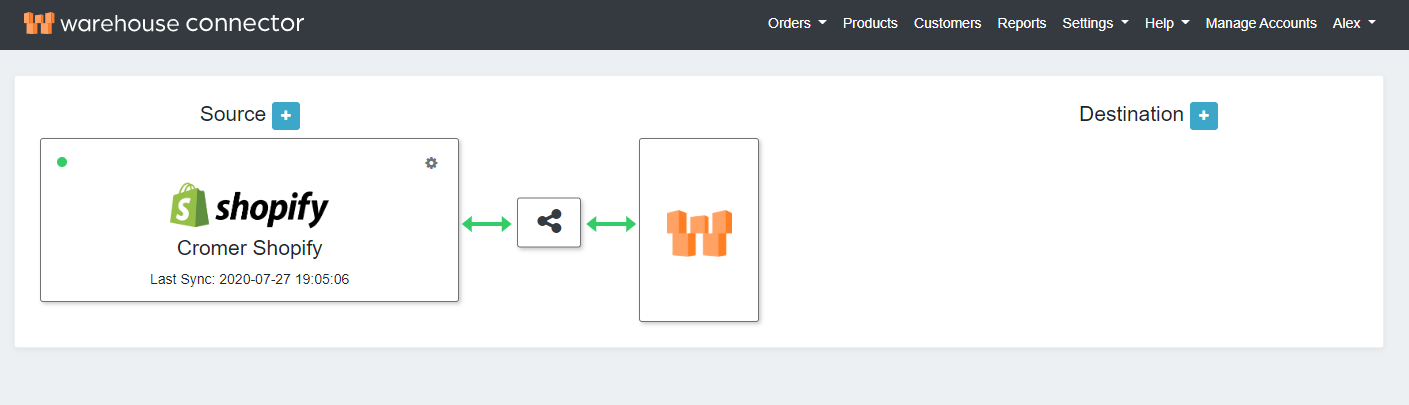
On the Connectors page, click the Add icon next to Destination.
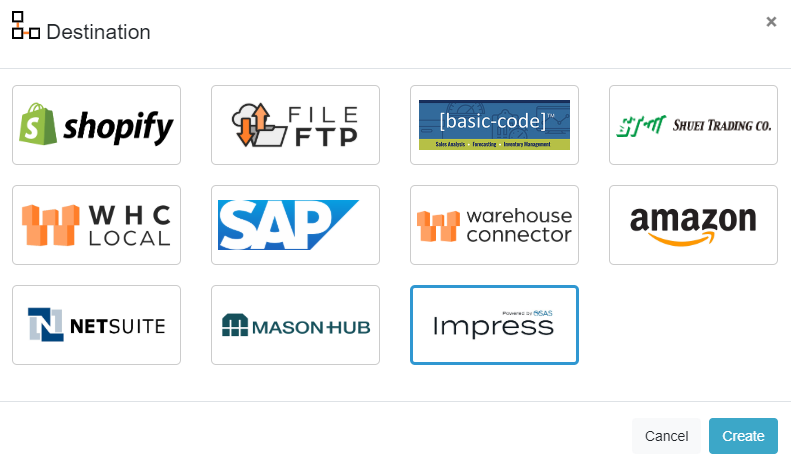
On the Destination page, select Shuei Trading Company (Impress) and click Next.
The Impress connector is added as follows.
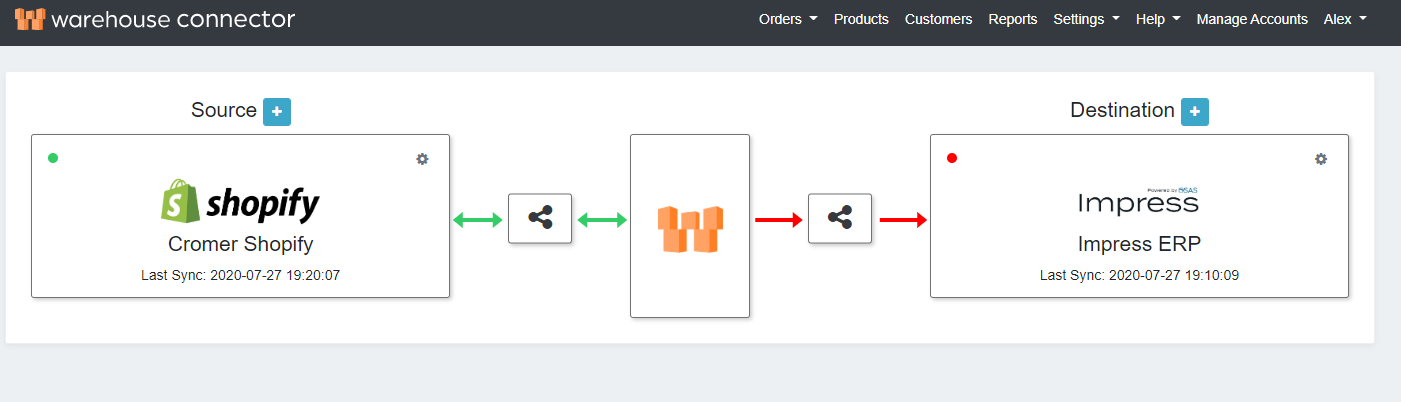
Click on the Settings icon and click Edit on the menu to provide the API details.
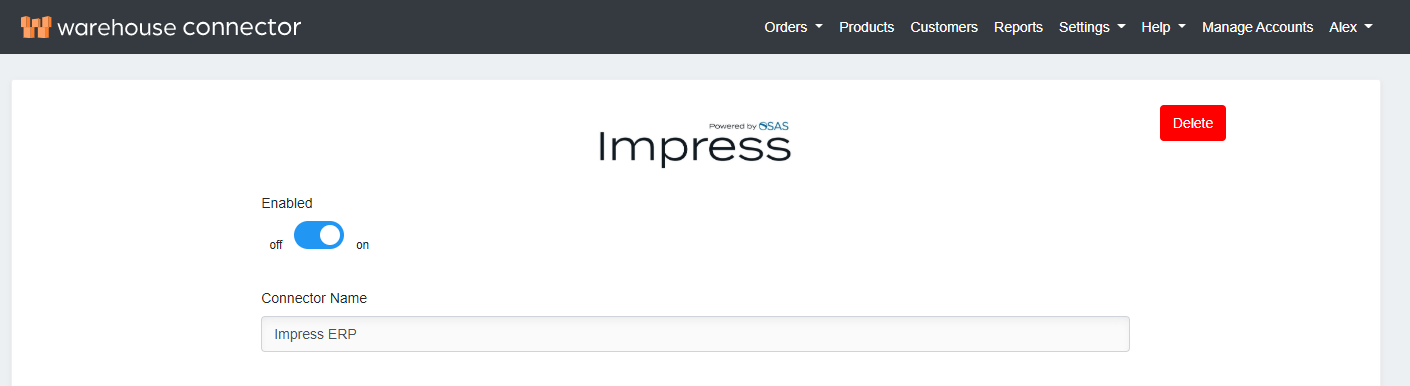
The Impress connector details page is displayed.
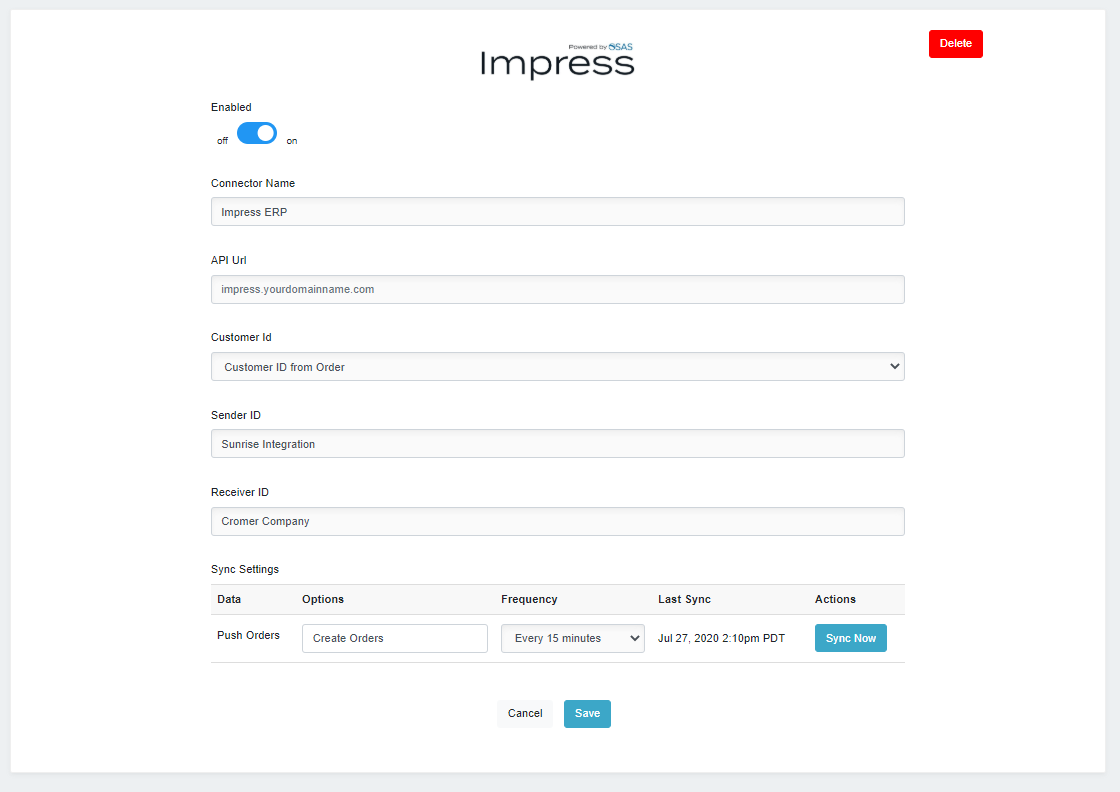
On this page, enter the following details:
| Enabled | Enable the connector by switching the On toggle. |
| Connector Name | Enter a name for your connector |
| API Url | Enter API Url |
| Customer ID | Select wether to use customer ID from the incoming order (Customer ID from Order) or have the same customer ID for all of the orders (Fixed Customer ID). |
| Enter Fixed ID | If Fixed Customer ID is selected you must enter a value for the fixed ID |
| Sender ID | Enter sender ID for Impress XML Document |
| Receiver ID | Enter receiver ID for Impress XML Document |
Click Save to save your changes.
If you ever need to delete the connector, then click Delete on top of the connector settings page to remove it. This may impact any orders that have not been sent to Impress.