
# How do I export customers to a CSV file?
Warehouse Connector allows you to export a comma-separated values (CSV) spreadsheet of your customers from the customers page.
To export customers to a CSV file:
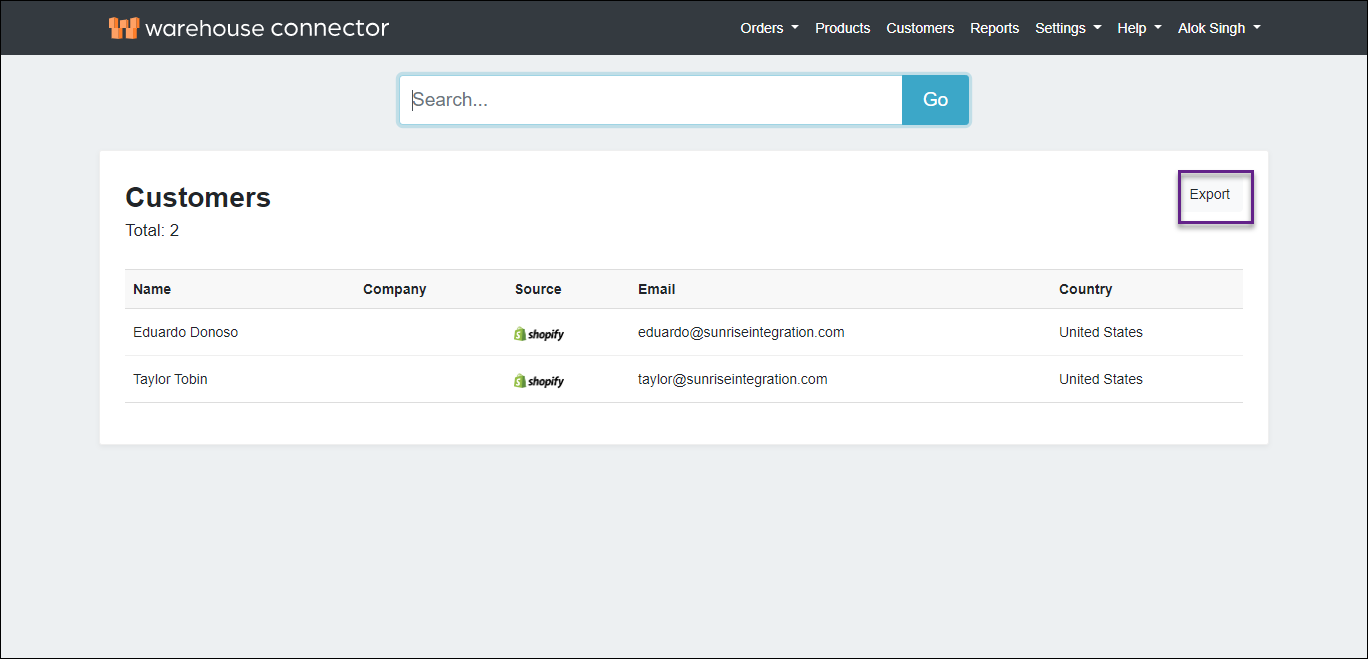
On the Customers page, click Export.
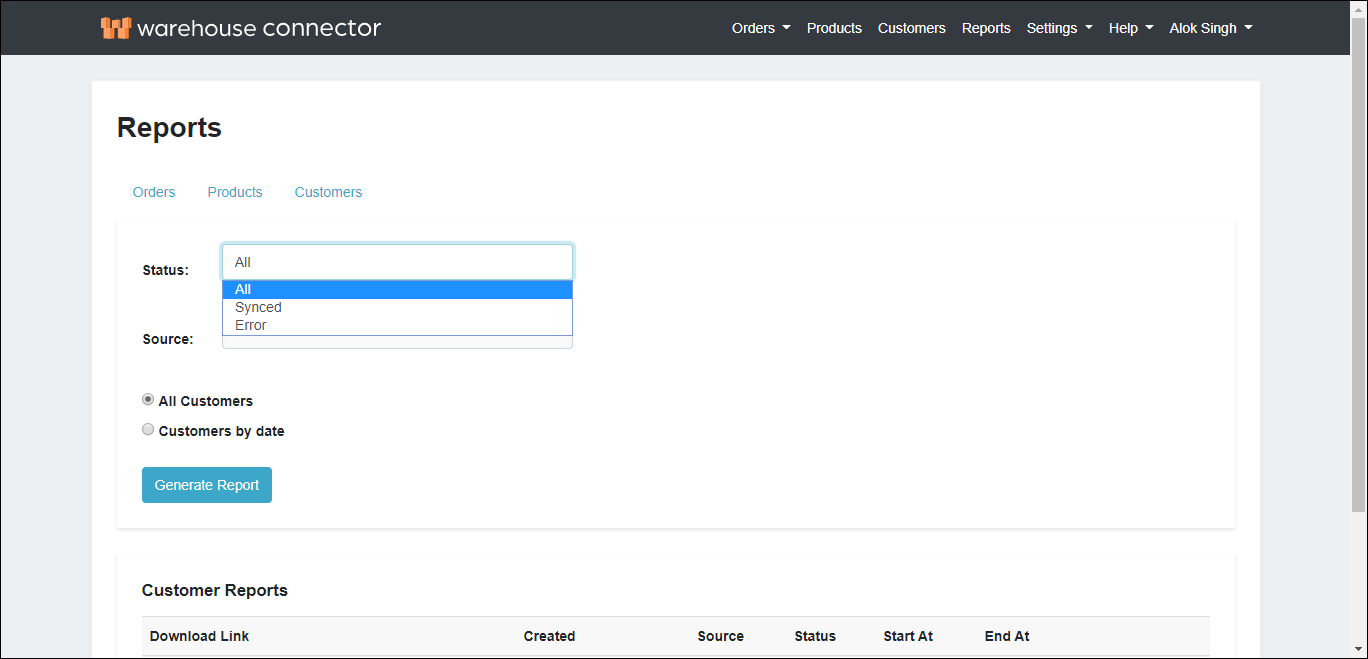
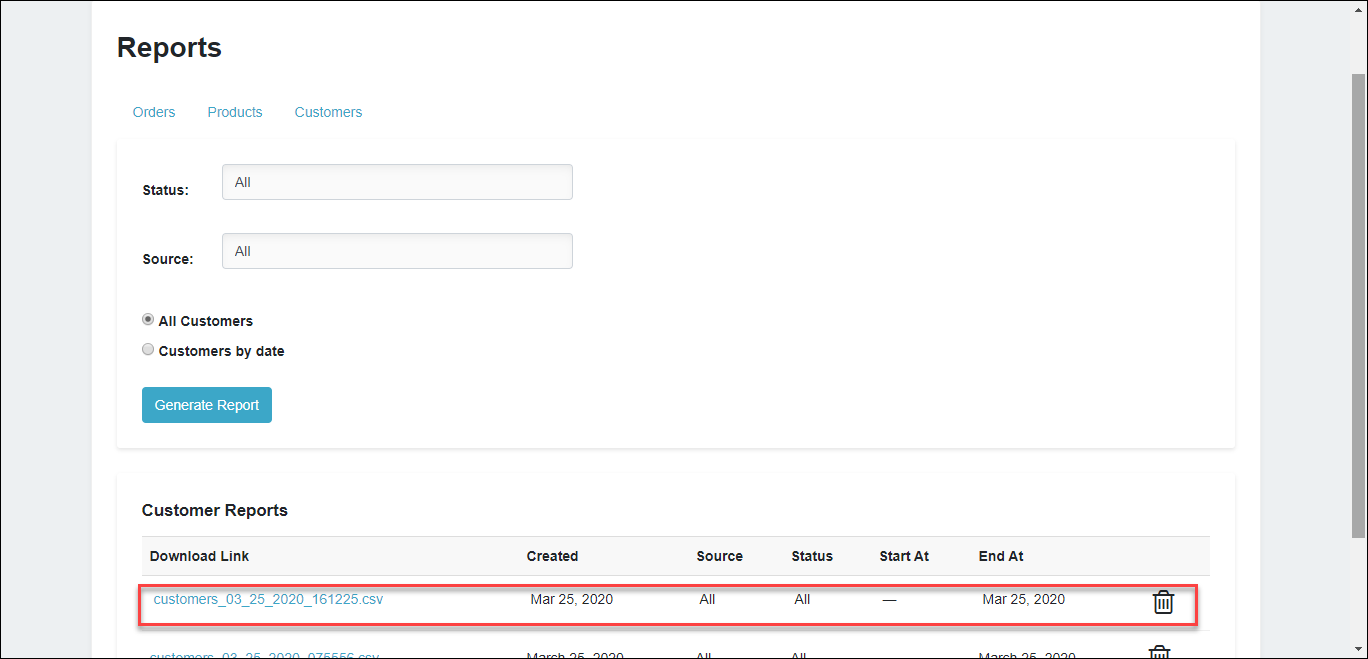
On the Reports page, select the customer Status for which you want to generate the CSV file. Select All if you want to generate the file for all the customers.
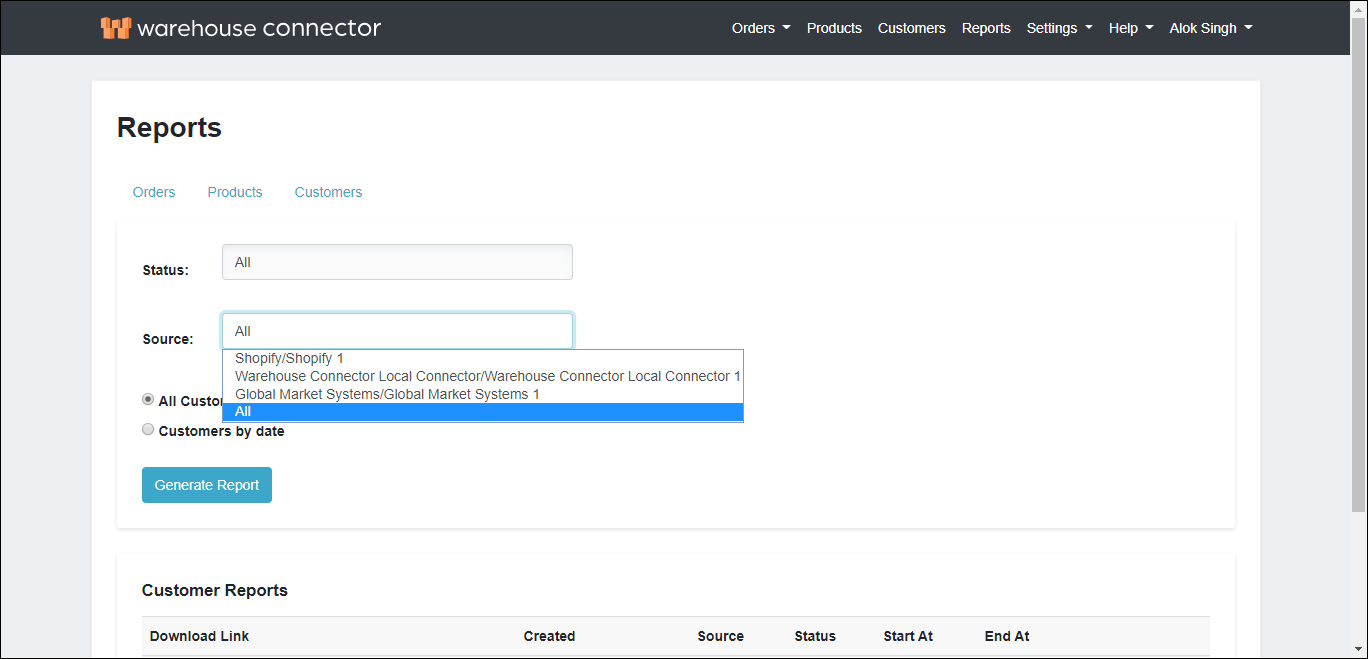
Select the customer Source for which you want to generate the CSV file. Select All if you want to generate the file for all the sources.
Select the option for the customers that you want to export. For example, if you want to export customer data by date, then select the Customers by date option and set the start and end dates for the customers that you want to export. Select All customers if you want to export data of all the customers.
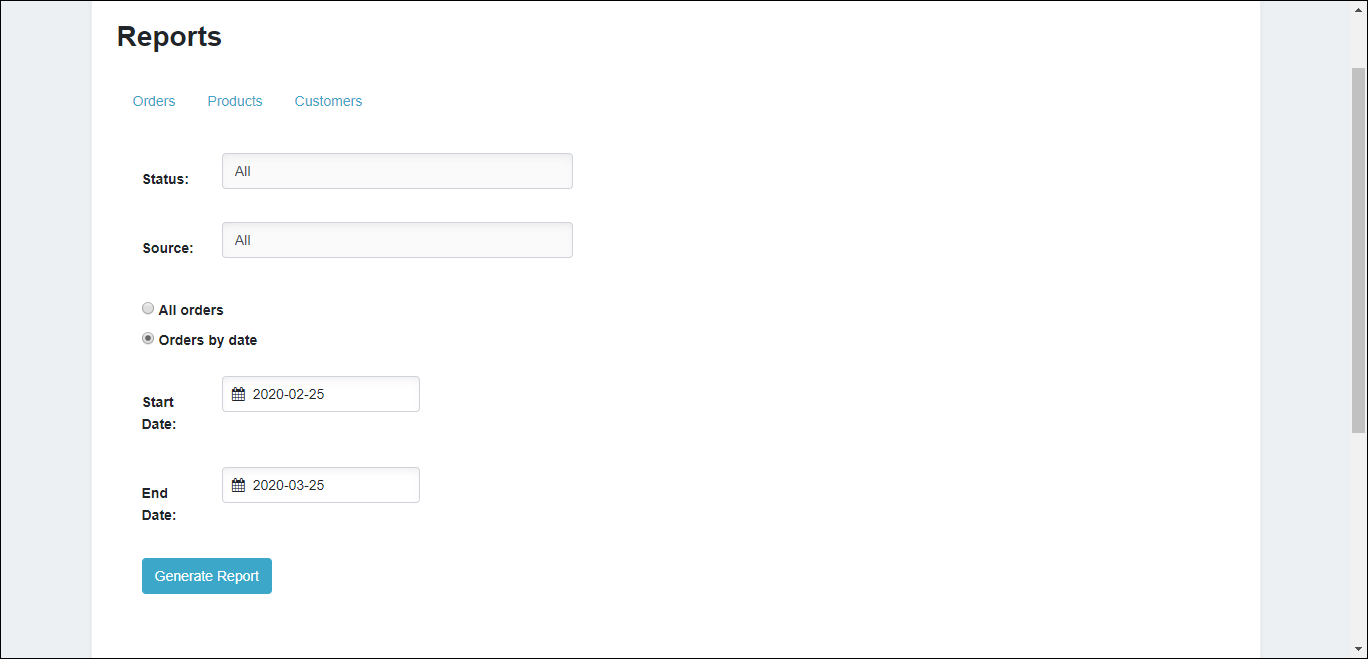
Click Generate Report.
The generated CSV is available in the Customer Reports section as follows.
Customers export CSV structure
The following table describes the format of the CSV file that will be created when you export customers.
| Field | Description |
| Customer ID | The unique identifier of the customer. |
| First Name | The first name of the customer. |
| Last Name | The last name of the customer. |
| The customer's email address. | |
| Phone | The customer's phone number. |
| Company Name | The customer's company name. |
| Address 1 | The full first line of the customer's address. |
| Address 2 | The full second line of the customer's address. |
| Address 3 | The full third line of the customer's address. |
| City | The customer's address city. |
| State | The customer's state. |
| ZIP | The customer's address ZIP or postal code. |
| Country | The customer's country. |
| Orders Count | The count of orders that have been ordered by the customer. |
| Total Spent | The total amount spent by the customer till date. |
| Error Message | The error message, if any. |