# How do I connect MasonHub?
With Warehouse Connector, it is easy to integrate your store with your 3PL partners, such as MasonHub. First, you need to get API credentials from MasonHub; this allows Warehouse Connector to communicate with MasonHub. Then you have to configure the MasonHub Connector in Warehouse Connector using the API credentials provided by MasonHub.
To integrate MasonHub with Warehouse Connector, you need to have the following details present with you:
- Subdomain
- Account
- API Key
To connect MasonHub:
Navigate to the Settings menu and click Connectors.
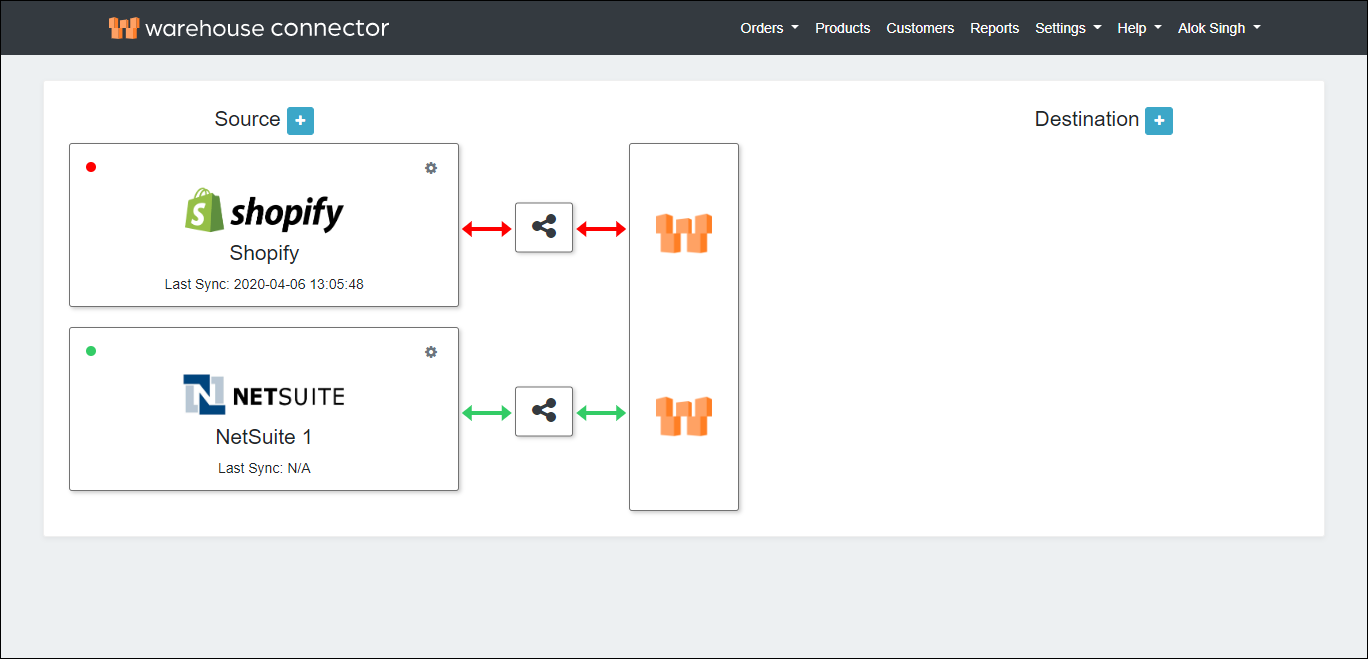
On the Connectors page, click the Add icon next to Destination.
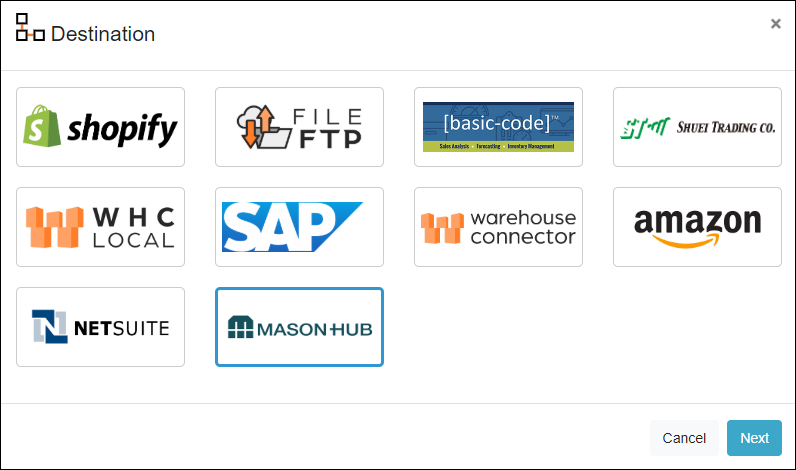
On the Destination page, select MasonHub and click Next.
The MasonHub connector is added as follows.
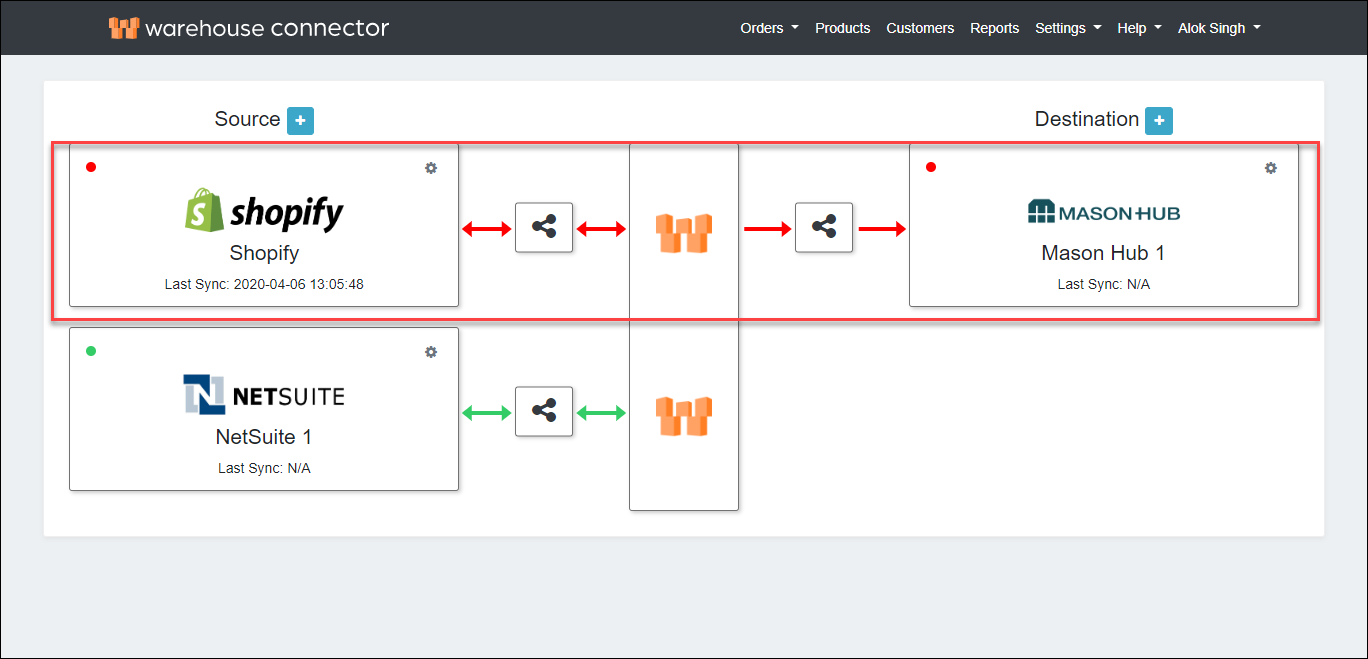
Click on the Settings icon and click Edit on the menu to provide the API details.
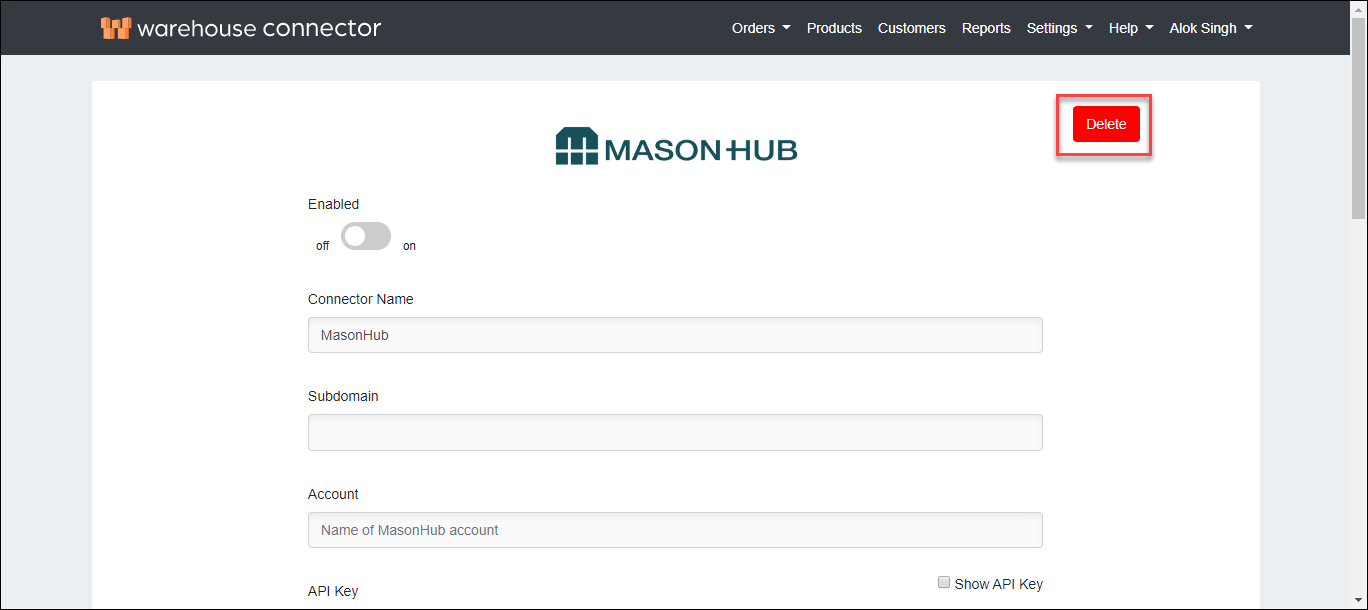
The MasonHub connector details page is displayed.
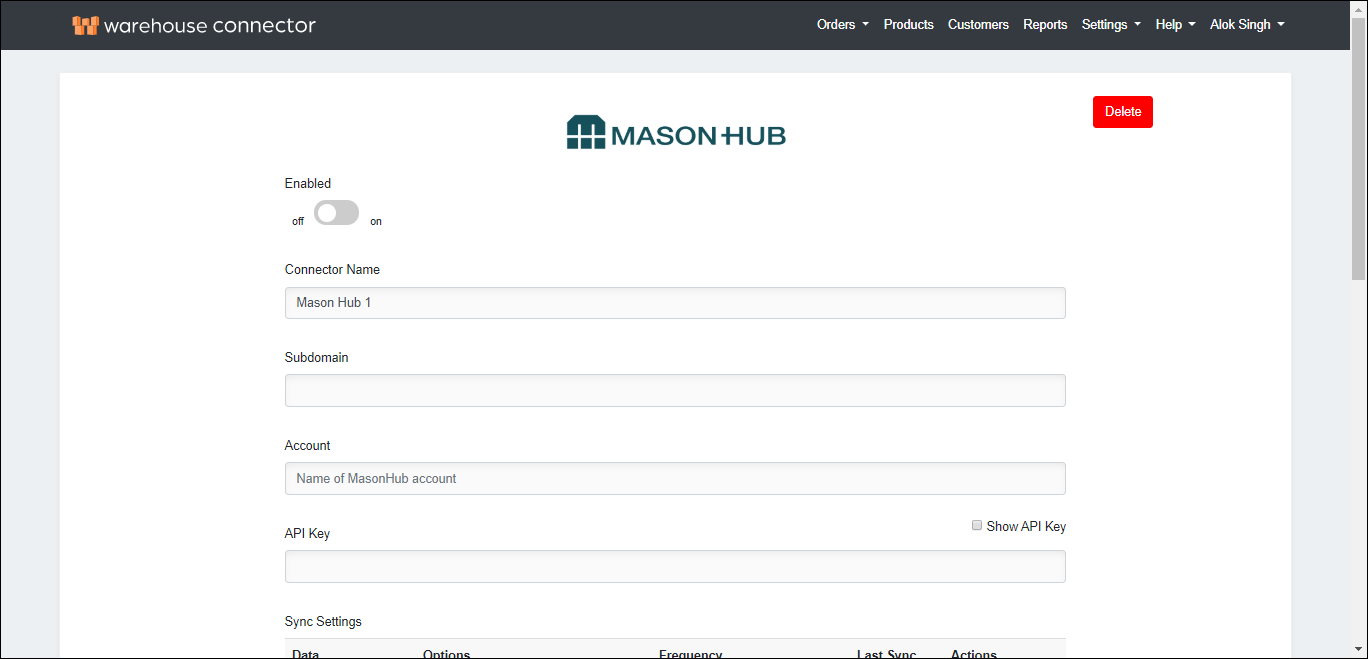
On this page, enter the following details:
| Field | Description |
| Enabled | Enable the connector by switching the On toggle. |
| Subdomain | Enter the subdomain. For example, {subdomain}.masonhub.co. |
| Account | Enter your MasonHub account name. |
| API Key | Enter the API key. |
| Show Password | Select the Show Password checkbox to view the API key. |
Click Save to save your changes.
If you ever need to delete the connector, then click Delete on top of the connector settings page to remove it. This may impact any orders that haven't been fulfilled.