
Warehouse Connector Help Return to Warehouse Connector App
GitHub
  • Warehouse Connector Overview
  • Manage Sales Orders
  • Manage Purchase Order
  • Manage Products
  • Manage Customers
  • Configure General Settings
  • Shopify Store Integration
  • Amazon Store Integration
  • NetSuite Integration
  • MasonHub Integration
    • How do I get credentials to access MasonHub?
    • How do I connect MasonHub?
    • How do I sync order, product, inventory, and fulfillment data with MasonHub?
    • How do I perform warehouse mapping with MasonHub?
    • How do I perform product mapping with MasonHub?
  • GLO/NAV Integration
  • Impress Integration

# How do I perform warehouse mapping with MasonHub?

Once MasonHub is successfully connected, Warehouse Connector allows you to map MasonHub inventory locations to their Warehouse Connector equivalent. This allows the automatic mapping of imported MasonHub's products. To be able to create mappings, Warehouse Connector products should be imported, and inventory locations should be configured in MasonHub.

To map the warehouse with MasonHub:

  1. Click on the Settings icon and click Edit on the menu to provide Warehouse Mapping details

    Scroll down to the Warehouse Mapping section.
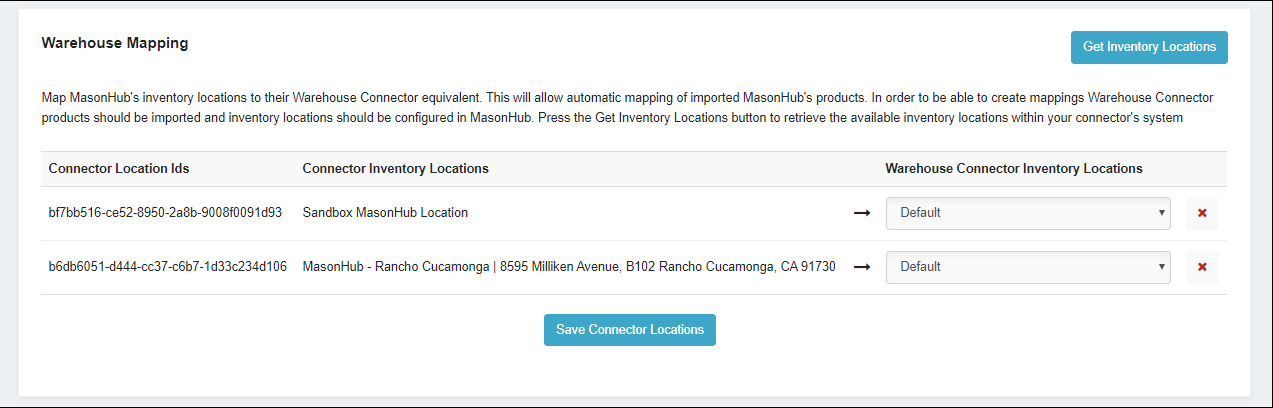
    Warehouse Mapping

  2. Click the Get Inventory Locations button to retrieve the available inventory locations within MasonHub.

  3. Select the location from the Warehouse Connector Inventory Locations list.

  4. Click Save Connector Locations when you have finished.

← How do I sync order, product, inventory, and fulfillment data with MasonHub? How do I perform product mapping with MasonHub? →

Didn’t find what you are looking for?
Tell us about your project Learn how you can keep your business competitive in an app-connected world. File a support ticket File a support ticket for critical issues that require a higher level of support.
Warehouse Connector © 2020