# How do I perform product mapping with the Amazon store?
Once your Amazon store is successfully connected, Warehouse Connector allows you to map Amazon's products to their Warehouse Connector equivalent. This allows automatic inventory updates and processing of orders. Amazon does not have an API endpoint for automatic import of orders, instead you need to export Amazon products as CSV file and import them to Warehouse Connector.
To export products from your Amazon store:
Log into your Amazon sellers account.
On the Inventory tab, select Inventory Reports.
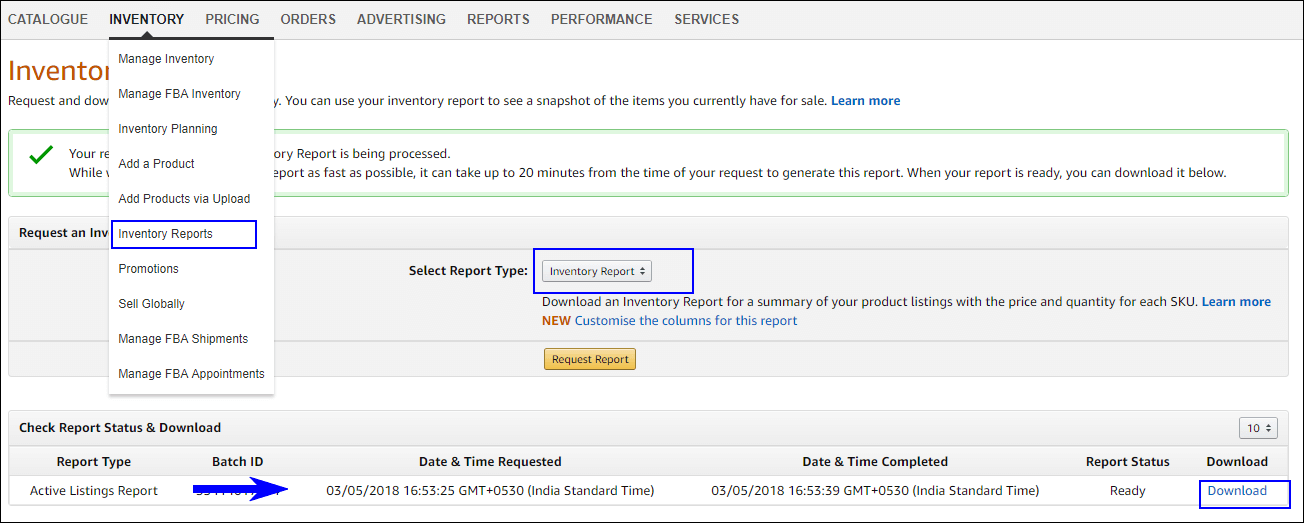
Select the Active Listings Report from the drop-down menu.
Click the Request Report button.
Reports generally take 15 to 45 minutes to generate. You can return to this page later to pick up your completed report.
Under Check Report Status & Download, when the Report Status is "Ready," click the Download button.
Save the file to your local computer.
Open the file on your computer in a spreadsheet editor.
Fill in any of the data that is missing or corrupt.
Once complete, save the sheet as a CSV file.
Now you're ready to upload your file to Warehouse Connector.
To upload Amazon products to Warehouse Connector:
Click on the Settings icon and click Edit on the menu to provide Product Mapping details.
Scroll down to the Product Mapping section.
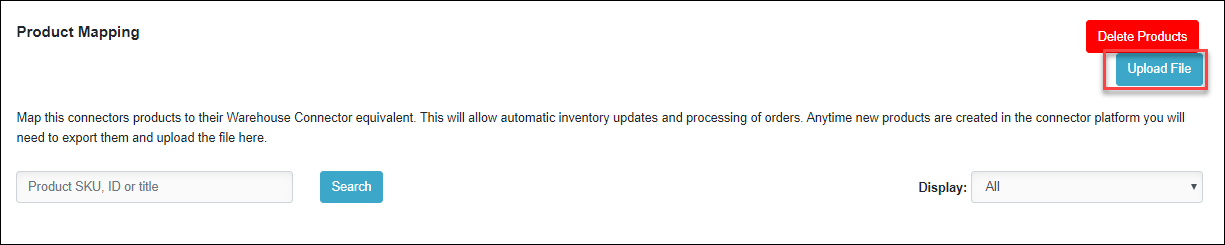
Click the Upload File button.
Select your file and click Open.
You have successfully imported the products from your Amazon store. Now, you need to map the products with Warehouse Connector.
To map products with your Amazon store:
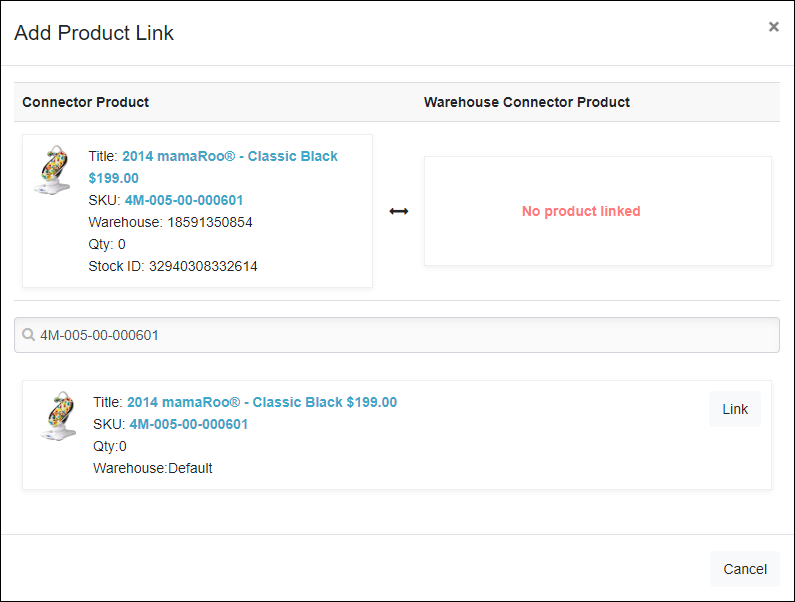
In the Product Mapping section, click Add Link to map the Amazon product to the Warehouse Connector product.

On the Add Product Link page, select the Warehouse Connector equivalent product and click Link.
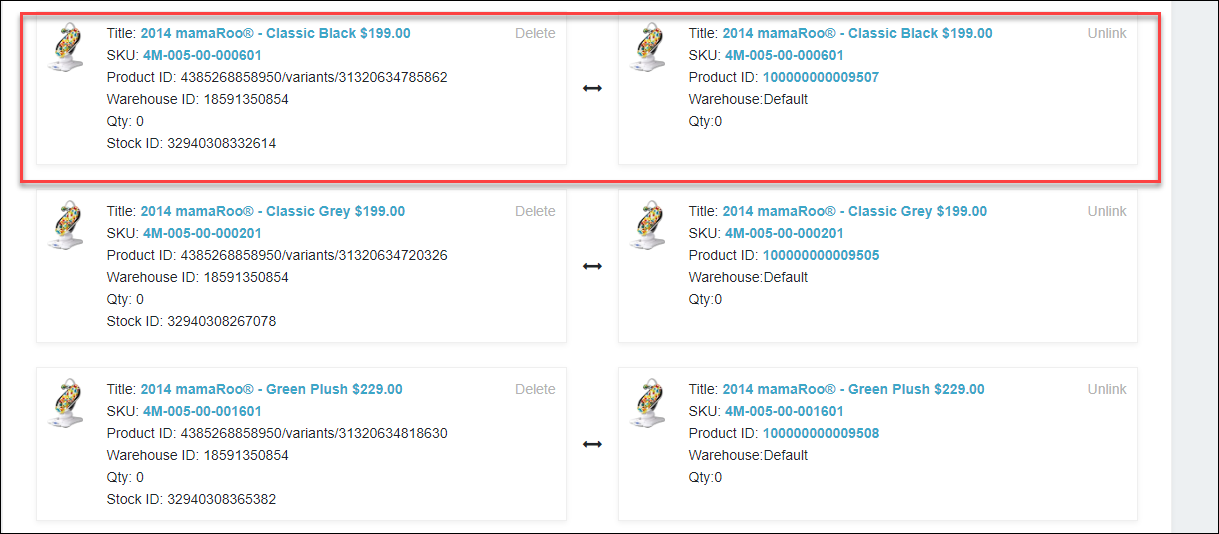
The products are successfully mapped as follows.