
# How to get the access credentials in NetSuite?
Before using the NetSuite Connector, you must find the NetSuite account ID and enable Token-Based Authentication (TBA) for your system. To create access tokens, first create an integration in the NetSuite account and enable token-based authentication for it. You can then create access tokens for this integration. In order to authenticate NetSuite connector, the following fields are required:
- Account ID
- Consumer Key
- Consumer Secret
- Token ID
- Token Secret
NetSuite System Administrators: Setup
Before using the NetSuite Connector, you must enable Token-Based Authentication for your system, create a new Integration record for the connector, and create a new custom Role to give users access the connector:
Step 1: Find your NetSuite Account ID
The most obvious place to get your NetSuite account ID is the browser address bar.
- First, you login to your NetSuite account.
- In the browser address bar copy the portion before .app.netsuite.com.
- Alternatively, you can go to Setup > Integration > Web Services Preferences and copy the account ID.
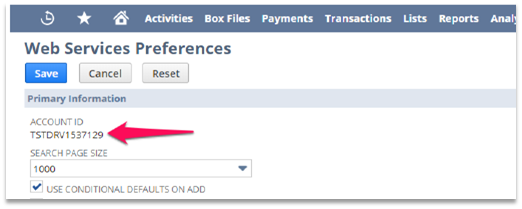
Note: If your Account ID contains a suffix - 1234567_WC2, for example - it should be included when entering the ID into Warehouse Connector.
Step 2: Enable token-based authentication
To use Warehouse Connector’s NetSuite integration, you’ll need to enable Web Services and token-based authentication in your NetSuite account.
Sign into your NetSuite account as an administrator, if you aren’t already signed in.
Navigate to Setup > Company > Enable Features.
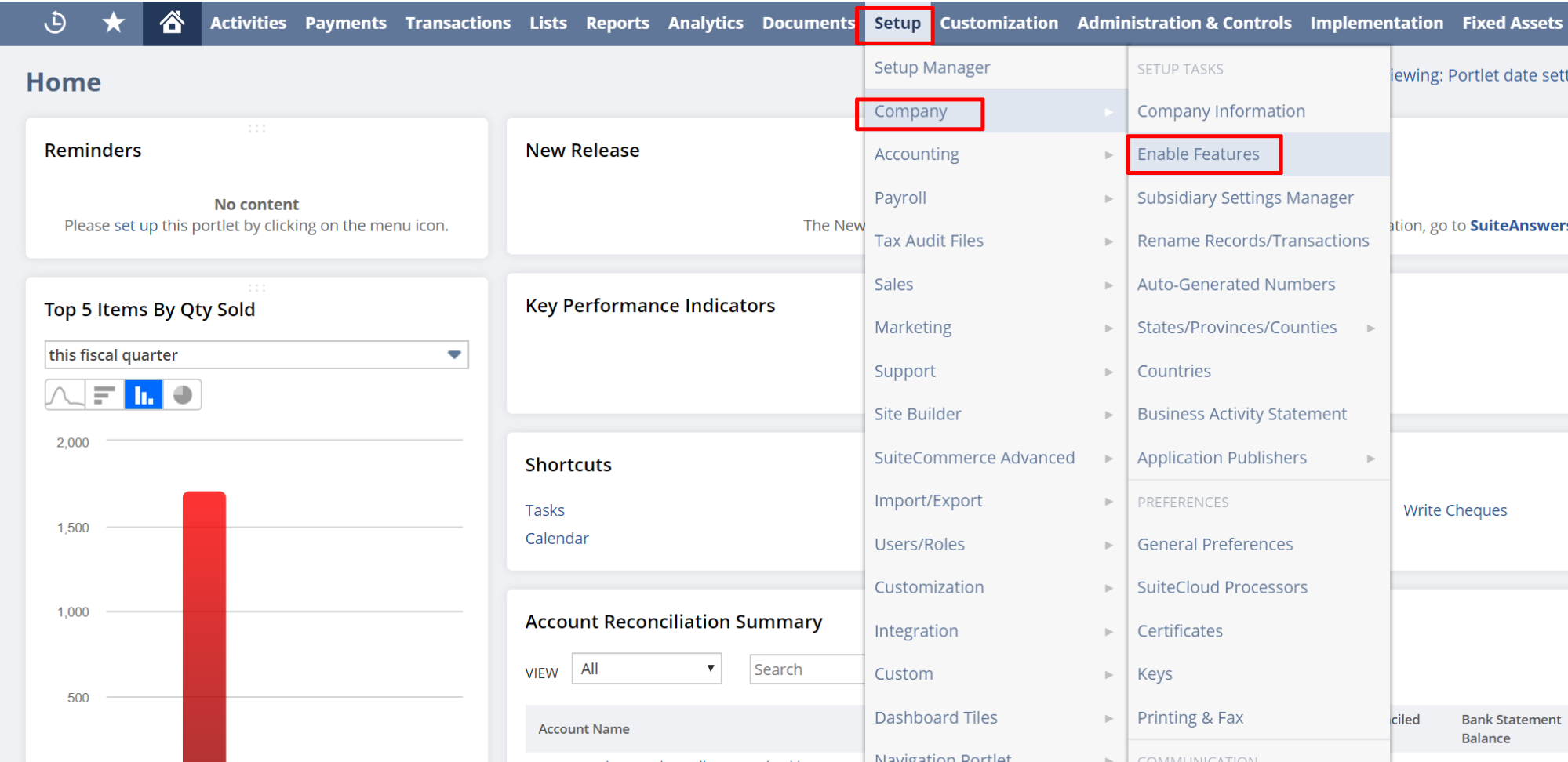
On the Enable Features page, click the SuiteCloud subtab.
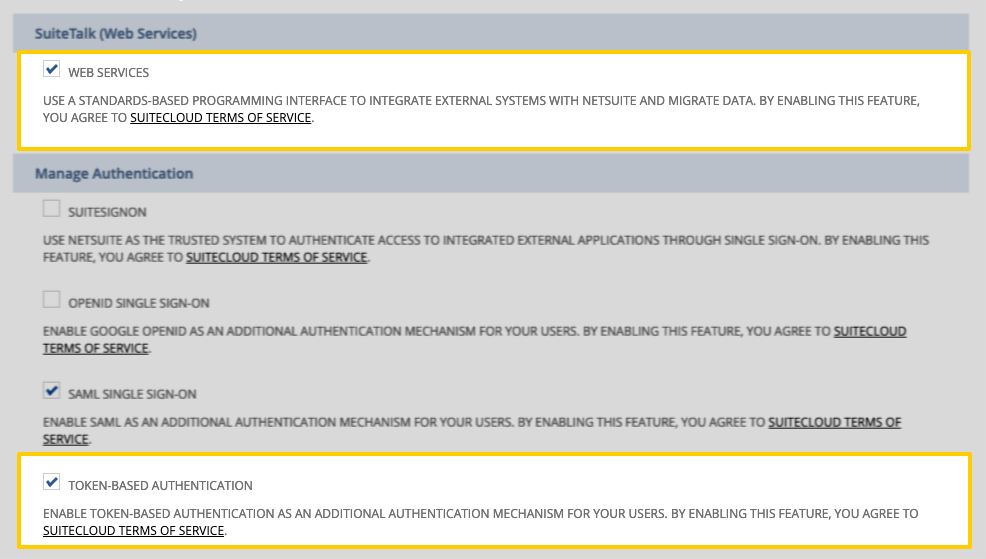
Locate the SuiteTalk (Web Services) section and Check the Web Services box.
Scroll down until you locate the Token Based Authentication checkbox in the Manage Authentication section and click to check the box.
A NetSuite SuiteCloud Terms of Service pop up will appear. Scroll to the bottom and click the I Agree button.
The Token-based Authentication box will now be checked. Your settings should look like this when finished:
Click Save at the bottom of the page.
Step 3: Create an integration record for Warehouse Connector
Next, you’ll create an integration record for Warehouse Connector. This will uniquely identify Warehouse Connector in your NetSuite account.
Log into your NetSuite system administrator account and navigate to Setup > Integration > Manage Integrations.
On the Integrations page, click the New button.
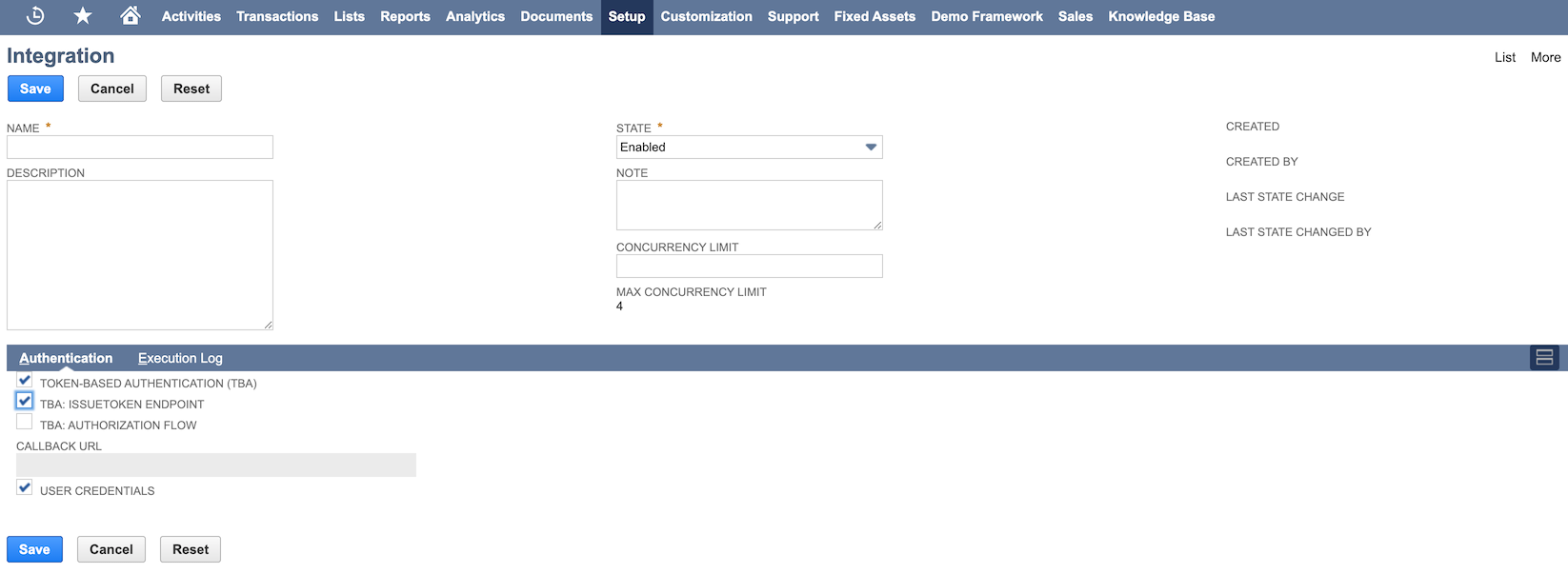
On the New Integration page, fill in the following fields:
- Name: Enter a name for the integration. For example: integration
- State: Select Enabled.
In the Authentication tab, select the Token-based Authentication option.
Click the Save button. The confirmation page will display a Consumer key/secret section.
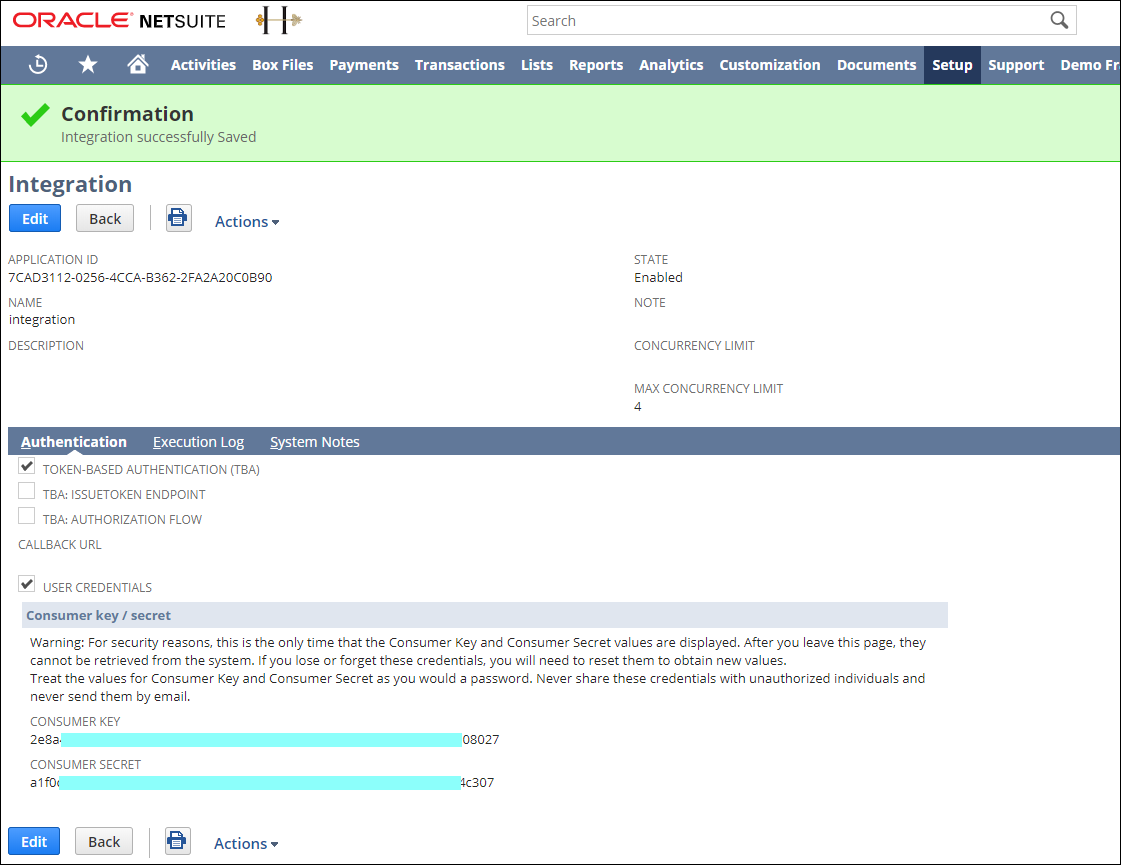
Once you press save, your Consumer key and Consumer secret are displayed. Be sure to copy these somewhere safe as you will not be able to access them again. You will need these credentials to complete the setup in Warehouse Connector.
Step 4: Create a Warehouse Connector role and configure permissions
To connect NetSuite to Warehouse Connector, it is recommended that you create a Warehouse Connector-specific role and user. It is to ensure that:
- Warehouse Connector is easily distinguishable in any logs or audits.
- Warehouse Connector doesn’t encounter issues with replication due to NetSuite’s API limitations. Currently, a single NetSuite user is allowed to only have a single open API session at a time. If the user connected to Warehouse Connector has another connection elsewhere, replication problems will arise.
- Warehouse Connector can successfully authenticate to NetSuite.
Note: You must create a new role. You cannot use one of the standard roles.
To create a new Warehouse Connector role and configure permissions:
In NetSuite, navigate to Setup > Users/Roles > Manage Roles > New.
On the Role page, enter a name for the role in the Name field.
Ensure that Web Services Only Role is Unchecked.
Under the Access tab, select the Give Access checkbox.
On the Permissions tab, configure the access to allow the Transactions, Lists, and Custom Records that you want for the NetSuite Connector.
Update the permissions in the Global Permissions tab as follows:
- Access Token Management
- User Access Tokens
- Log in using Access Tokens
We need the Log in using Access Tokens permission at a minimum to enable the user to authenticate via token-based authentication.
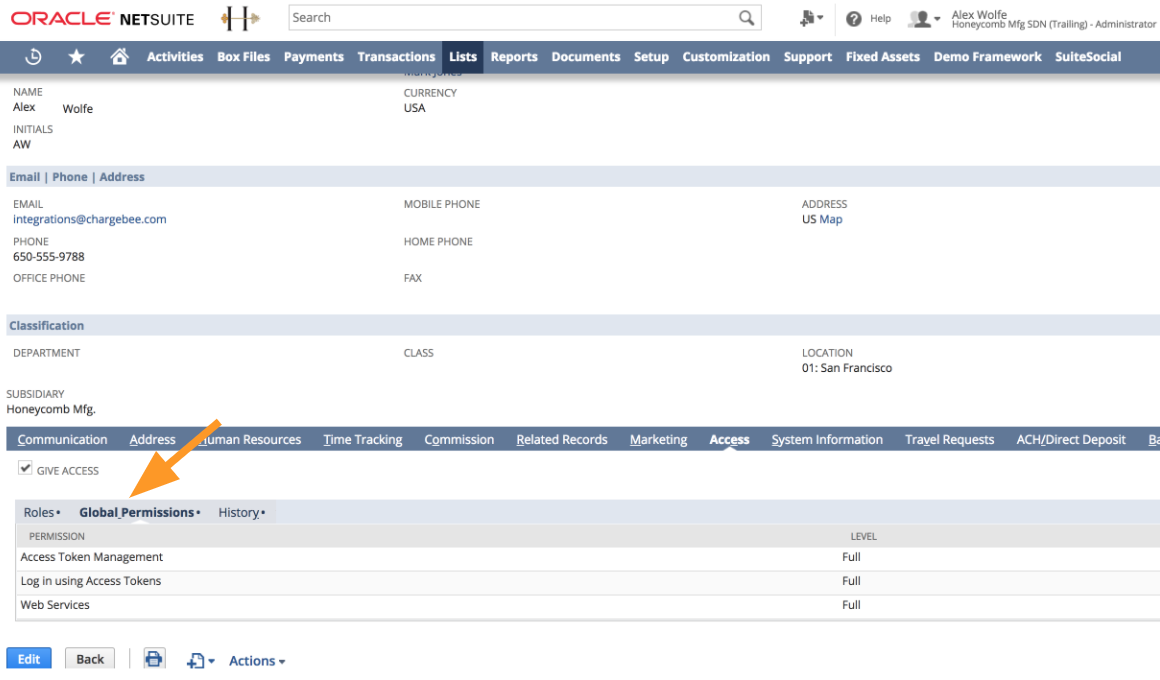
After you’ve finished granting permissions to the role, click Save to create it.
Note: This requires you to have an available license on your NetSuite account. You can revoke access from another user to make an administrator's seat available.
Step 5: Create a Warehouse Connector NetSuite user
Next, you’ll create a dedicated NetSuite user for Warehouse Connector and assign the Warehouse Connector role to it.
Log into your NetSuite system administrator account and navigate to Lists > Employees > Employees > New.
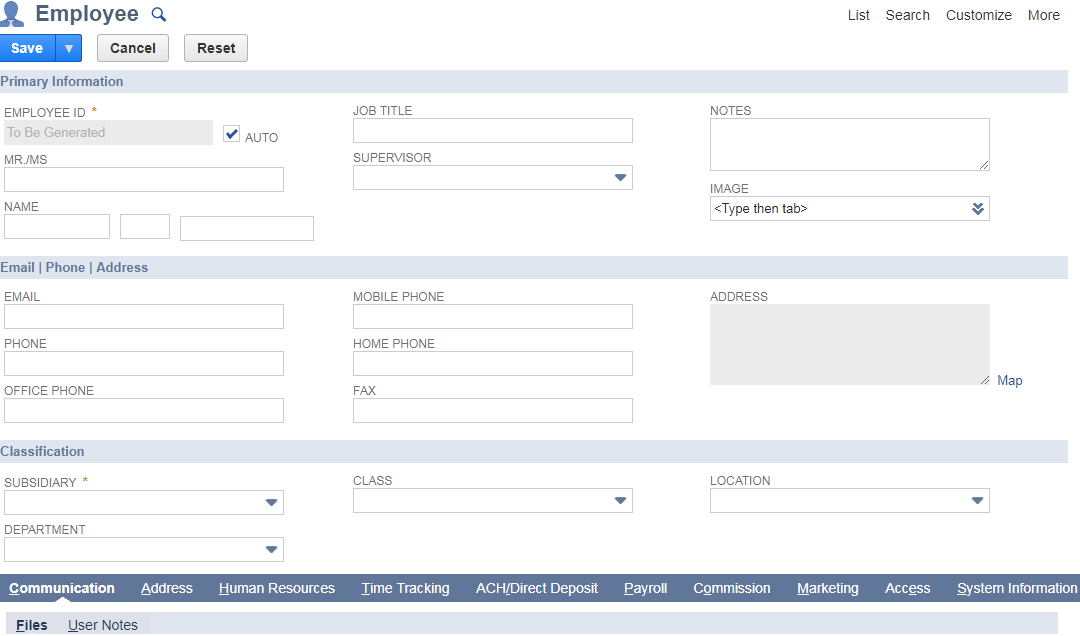
In the Employee page, fill in the Name, Email, and any other required fields.
Click the Access tab, located in the bottom half of the page.
In the Access tab:
- Check the Manually assign or change password box to create a password for the Warehouse Connector user.
- Enter a password in the Password field, then again in the Confirm Password field.
- In the Roles section, search the dropdown menu to locate the Warehouse Connector role that you have created.
- Click Add once you’ve located the role.
When finished, click Save to create the user.
Step 6: Create access tokens for Warehouse Connector
In this step, you’ll generate access tokens for the Warehouse Connector integration record (application) and user role.
Log into your NetSuite system administrator account and navigate to Setup > Users/Roles > Access Tokens > New.
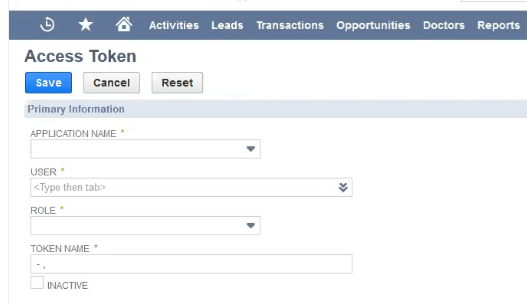
On the Access Token page, fill in the following fields:
- Application Name: Select the integration record that you have created before.
- User: Select the Warehouse Connector user that you have created before.
- Role: Select the Warehouse Connector role that you have created before.
- Token Name: Enter a name for the token. For example: Warehouse Connector.
Click the Save button. The confirmation page will display a Token ID and Token Secret.

Record the Token ID and Token Secret somewhere and keep it confidential - these can not be retrieved again from NetSuite. These are to be used for connecting to NetSuite on Warehouse Connector.
You can now authenticate with NetSuite on Warehouse Connector using your Account ID, Token ID, Token Secret, Consumer Key, and Consumer Secret.