
# How do I connect my NetSuite store?
With Warehouse Connector, it is easy to integrate your NetSuite store with your 3PL partners. You need to grant access to your NetSuite store. NetSuite stores integrate directly with Warehouse Connector. Warehouse Connector will automatically send queries to read the orders from your NetSuite account and then load them into the application.
To integrate your NetSuite account with Warehouse Connector, you need to have the following details present with you:
- Account ID
- Consumer Key
- Consumer Secret
- Token ID
- Token Secret
To connect my NetSuite store:
Navigate to the Settings menu and click Connectors.
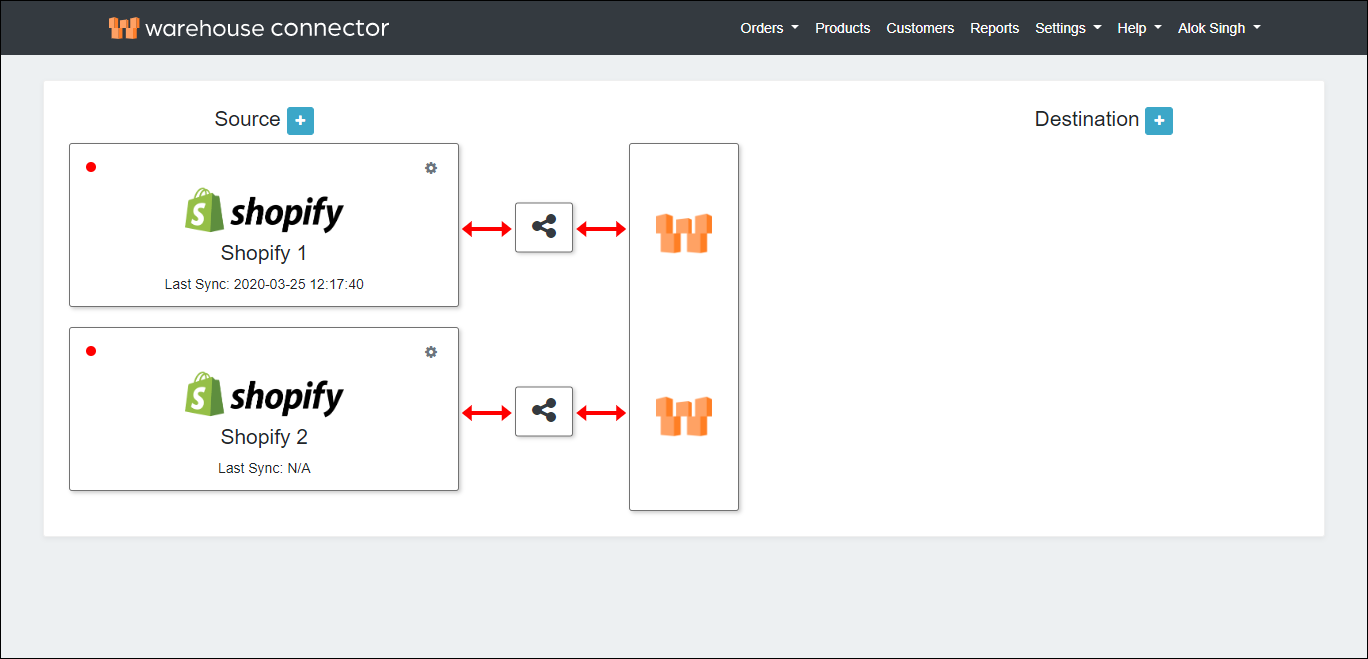
On the Connectors page, click the Add icon next to Source.
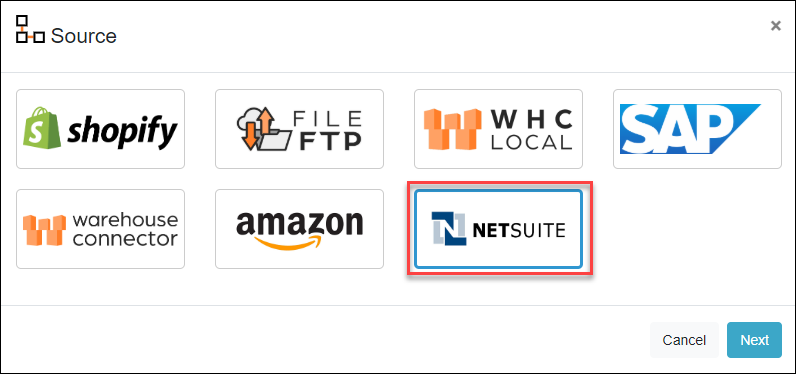
On the Source page, select the NetSuite store and click Create.
The NetSuite connector is added as follows.
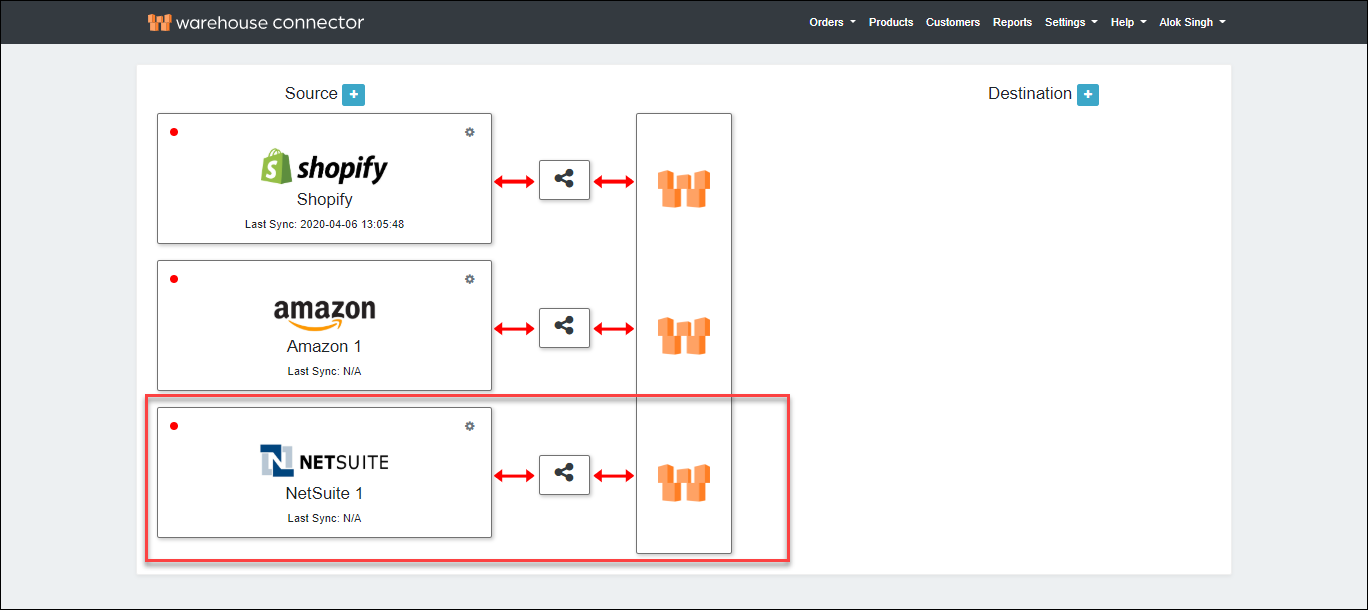
Click on the Settings icon and click Edit on the menu to provide the store API details.
The NetSuite connector details page is displayed.
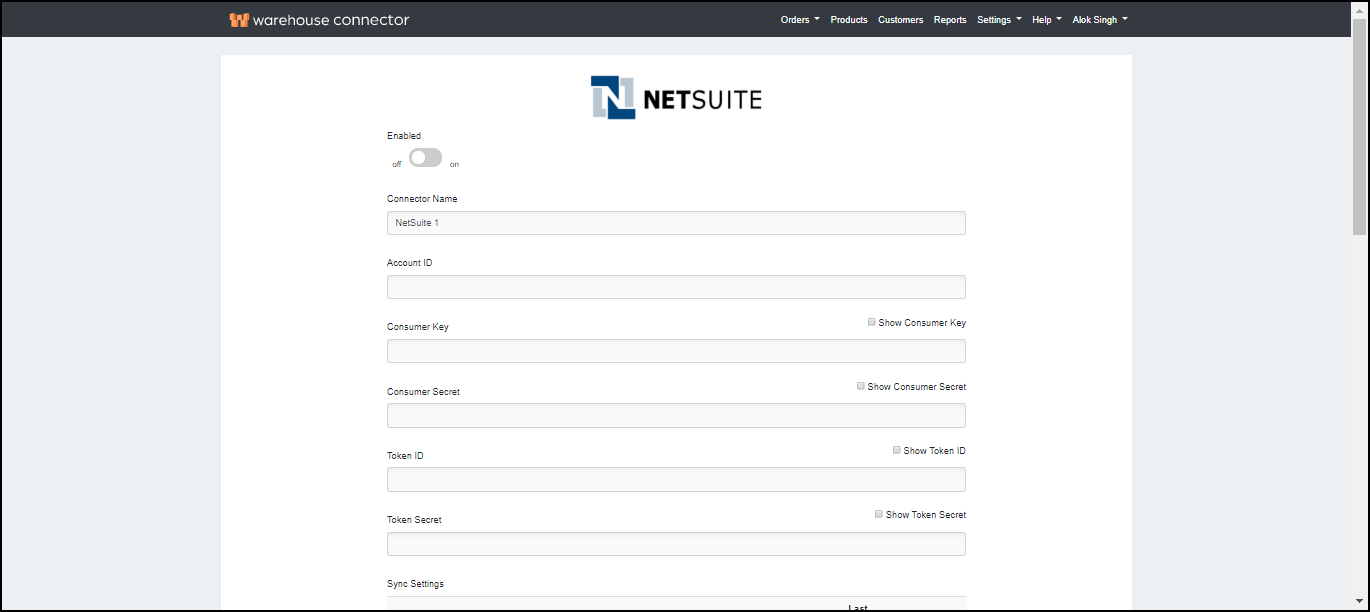
On this page, enter the following details:
| Field | Description |
| Enabled | Enable the connector by switching the On toggle. |
| Connector Name | Enter the name of the connector. You might want to keep the default name or change it as per your requirements. |
| Account ID | NetSuite account ID. Find this ID in Web Service Preferences in your NetSuite account. |
| Consumer Key | Client key associated with the NetSuite account. Generated when you create an integration and enable token-based authentication in NetSuite. |
| Consumer Secret | Client password associated with the NetSuite account. Generated when you create an integration and enable token-based authentication in NetSuite. |
| Token ID | Token ID for the access token generated in NetSuite. |
| Token Secret | Token secret for the access token generated in NetSuite. |
- Click Save to save your changes.