
# How do I sync order data with the Shopify store?
To sync orders with your Shopify store, you need to choose which orders from Shopify you want Warehouse Connector to download based on their Financial status. You can choose to download Authorized, Pending, Paid, Partially Paid, Refunded, Voided, Partially Refunded, or Unpaid.
Paid is the recommended status to sync with. Be careful setting this status to anything other than Paid as you may inadvertently fulfill orders that never receive payment.
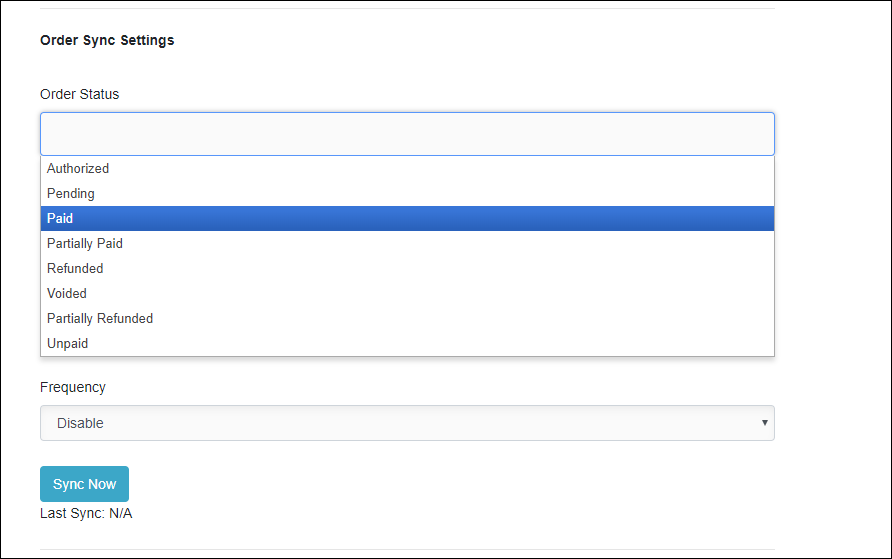
To sync orders with your Shopify store:
Click on the Settings icon and click **Edit ** on the menu to provide Order Sync Settings details.
The Shopify connector details page is displayed.
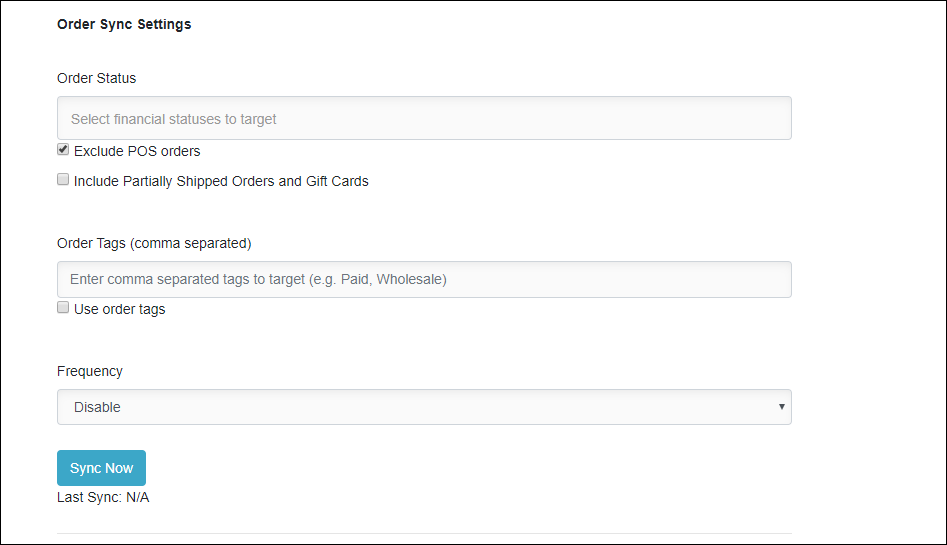
In the Order Status list, choose Paid.
Enter the following details:
| Field | Description |
| Exclude POS orders | Select the Exclude POS orders checkbox to exclude POS orders. If this is unchecked, then the Warehouse Connector will import Shopify POS orders as long as they are for a physical product and require shipping. |
| Include Partially Shipped Orders and Gift Cards | Select the Include Partially Shipped Orders and Gift Cards checkbox to import partially shipped orders and gift cards. |
| Order Tags (comma separated) | If you want to use the order tags and have selected the Use order tags checkbox, then specify the Shopify order tags for which you want to import the associated orders. |
| Use order tags | Select the Use order tags checkbox to allow the import of orders by using order tags. |
| Frequency | Select the frequency at which you want to sync the order data between Warehouse Connector and Shopify. The recommended frequency is Every 1 hour. In this case, the Warehouse Connector will check every one hour for any newly paid orders in Shopify and will update orders in the system accordingly. |
- Click Sync Now to sync the order data immediately.
- Click Save when you have finished configuration for all of the order sync settings.