
# How do I create an Order?
Orders that are generated offline or via a channel that is not integrated with Warehouse Connector must be created manually.
You can create such orders in Warehouse Connector and fulfill it through your 3PL partner.
To create a new order:
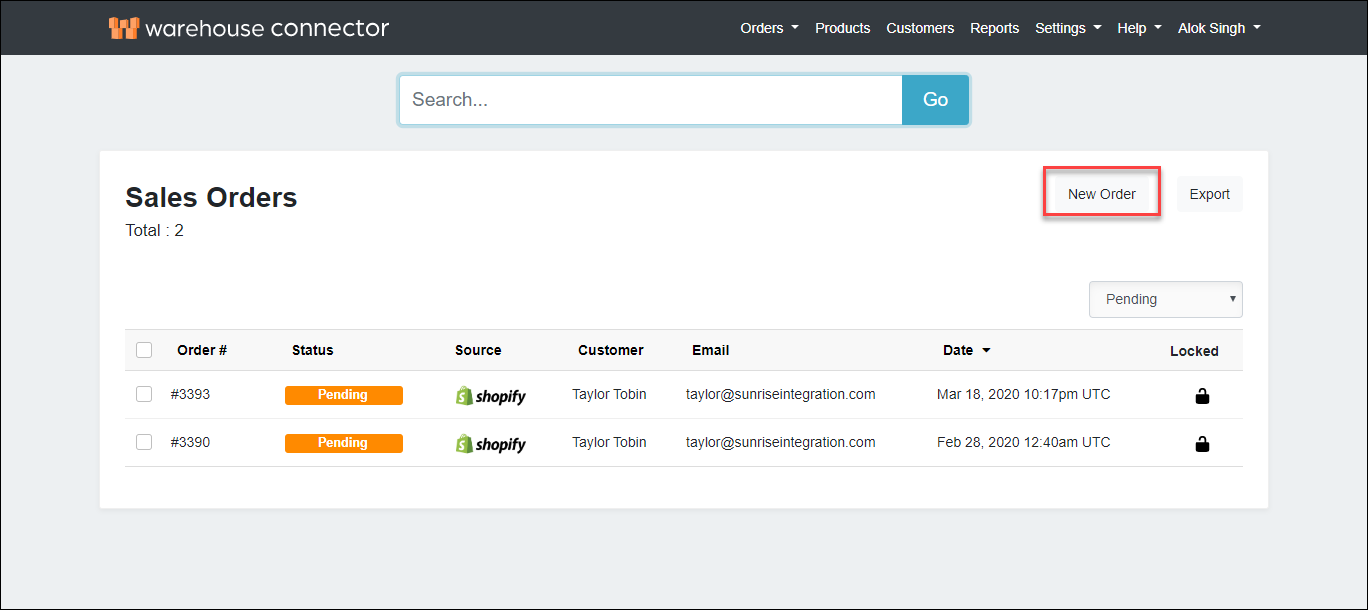
Go to the Sales Orders page and click New Order.
On the new order page, enter the following details:
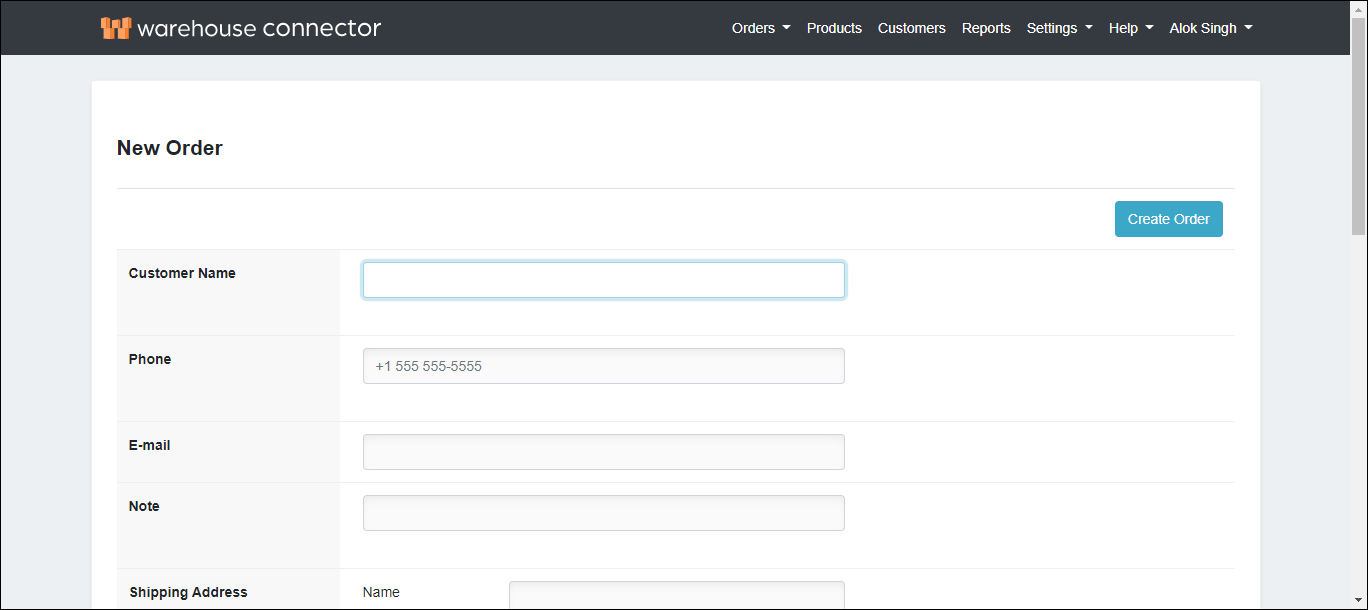
| Field | Description |
| Customer Name | Enter the name of the customer. |
| Phone | Enter the phone number of the customer. |
| Enter the Email address of the customer. | |
| Note | Add notes, comments, or instructions to the order. |
| Shipping Address | Enter primary mailing or shipping street address. |
| Shipping Cost | Enter the cost of shipping the order. |
| Tax Rate | Define the tax rate that is applied to the shipping amount. |
Next, you need to add products to the order. In the Line Items list, click the Add product button for adding products from the Warehouse Connector products list.

Click Add Custom Item to add a custom product.
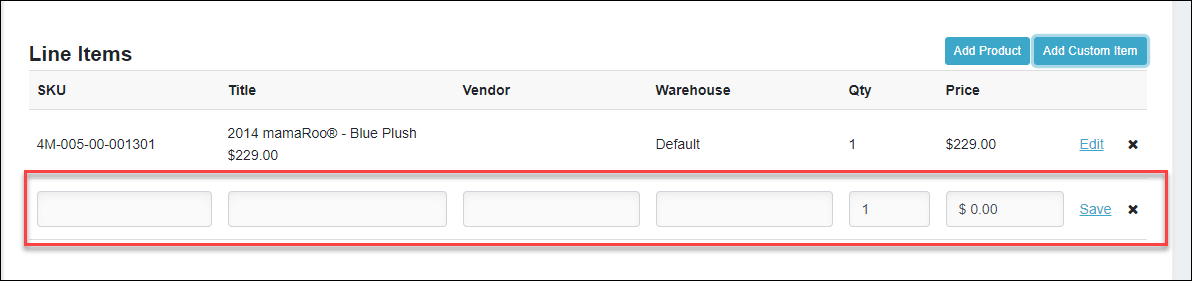
Enter a quantity and unit price for each product.
Save your changes.
Click Create Order. The order is added to Warehouse Connector.