
# How do I export orders to a CSV file?
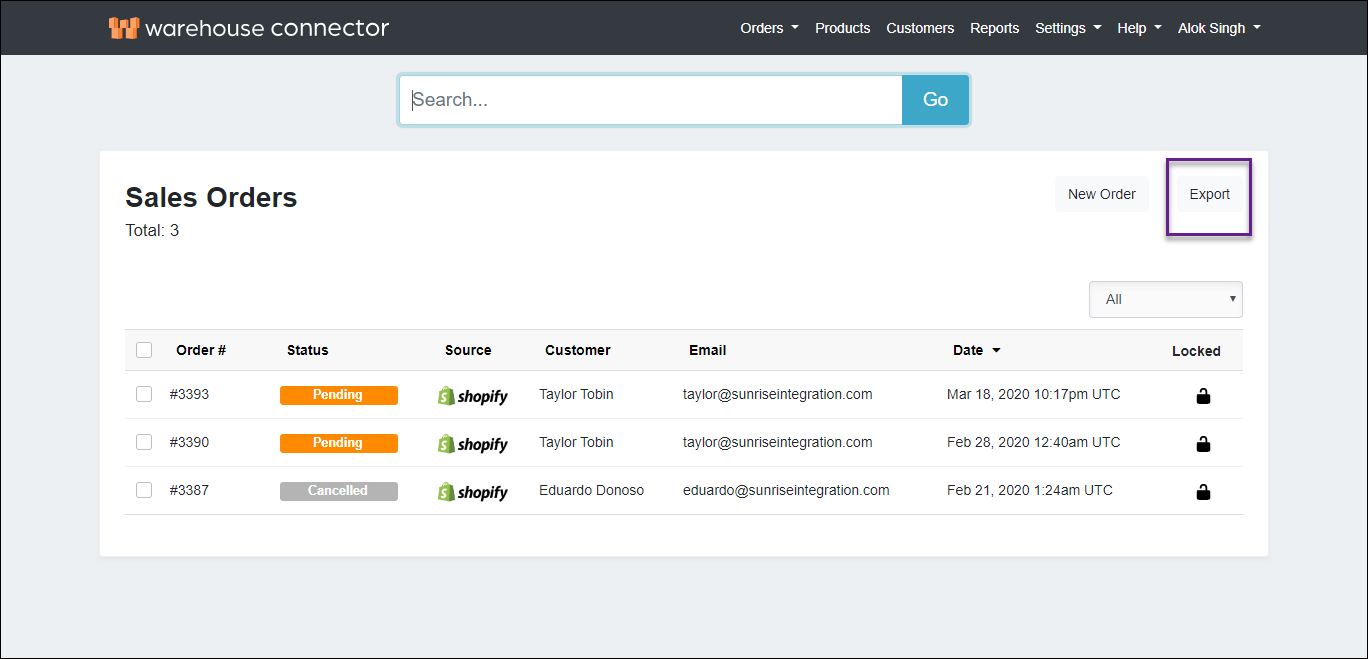
Warehouse Connector allows you to export a comma-separated values (CSV) spreadsheet of your orders from the Sales Orders page.
To export orders to a CSV file:
On the Sales Orders page, click Export.
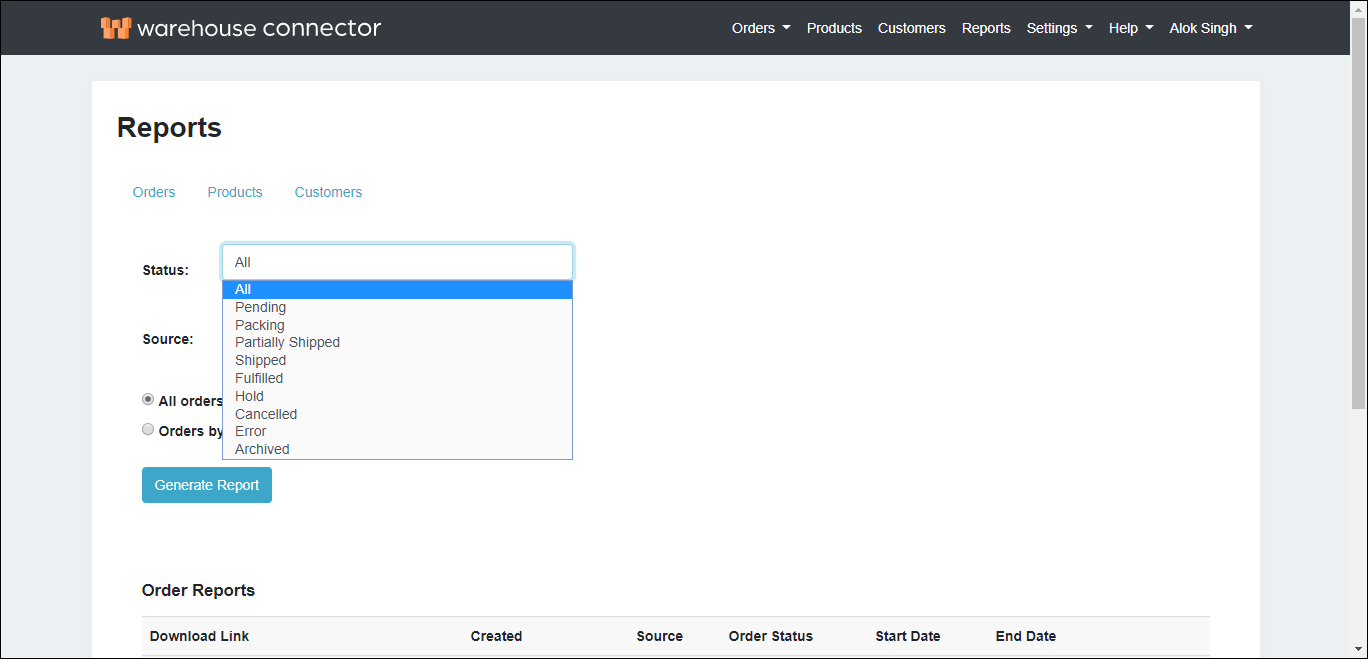
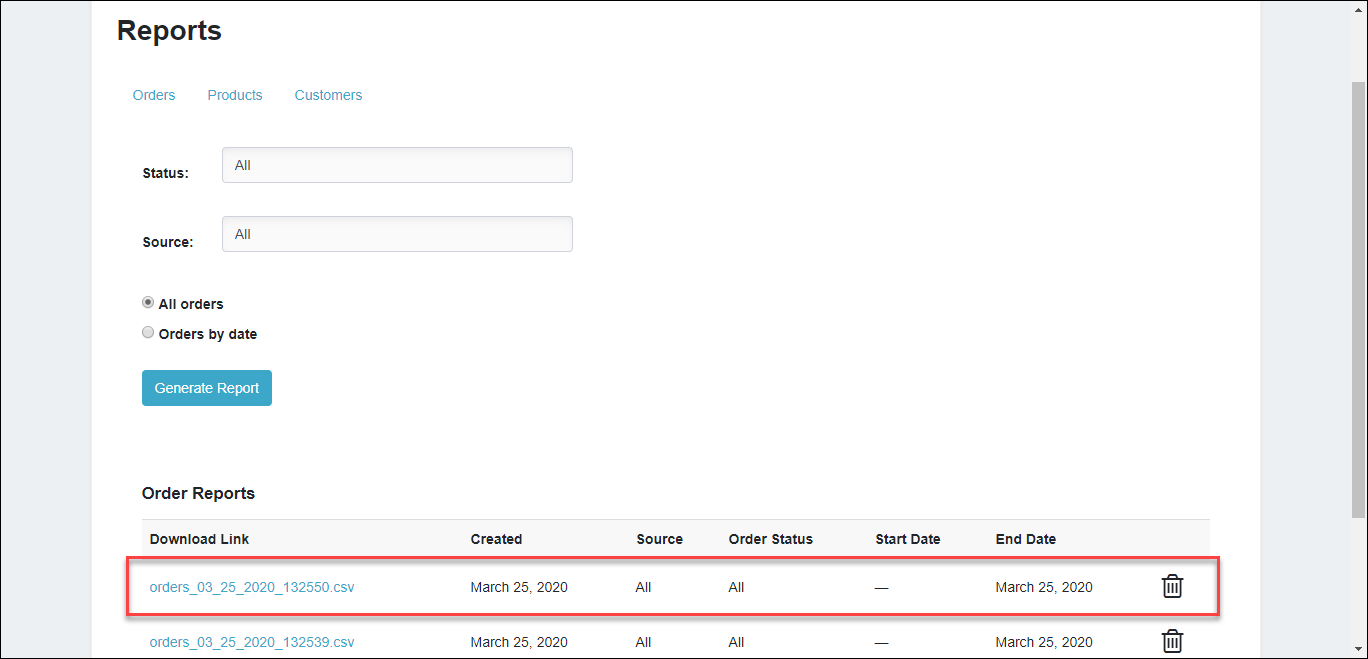
On the Reports page, select the order Status for which you want to generate the CSV file. Select **All **if you want to generate the file for all the order statuses.
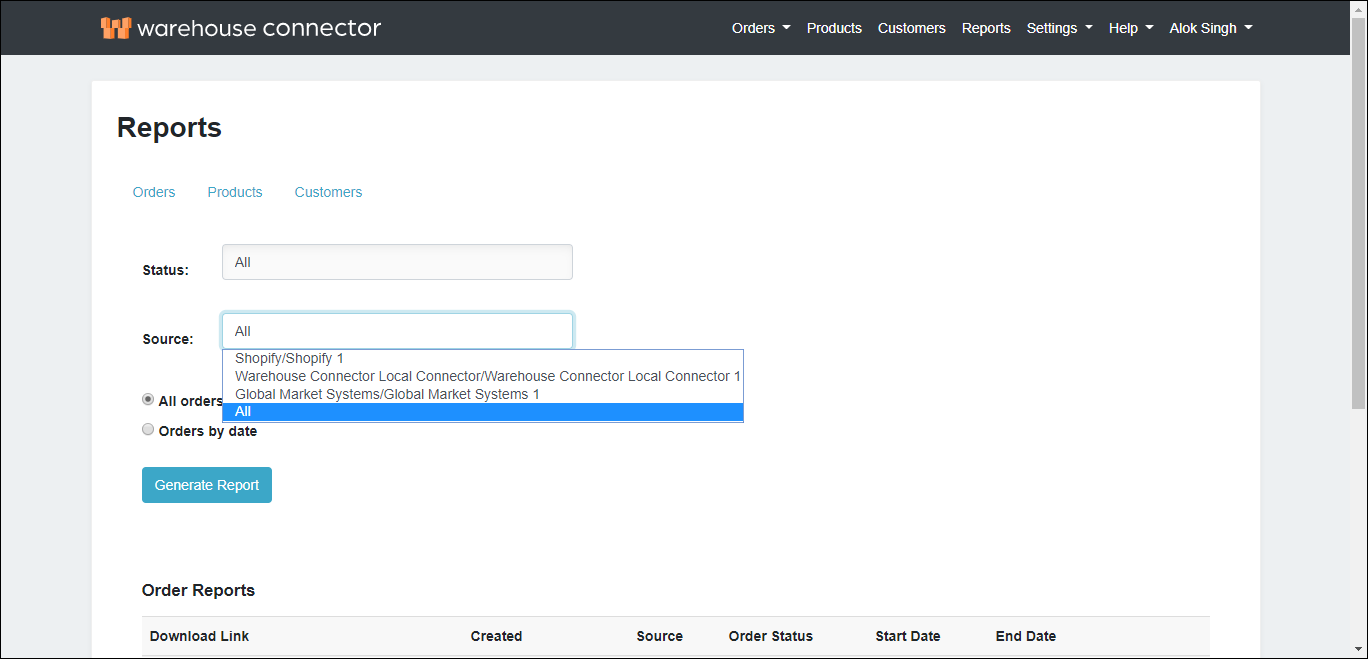
Select the store Source for which you want to generate the CSV file. Select **All **if you want to generate the file for all the store sources.
Select the option for the orders that you want to export. For example, if you want to export your order data by date, then select the Orders by date option and set the start and end dates for the orders that you want to export. Select All orders if you want to export the data for all the orders.
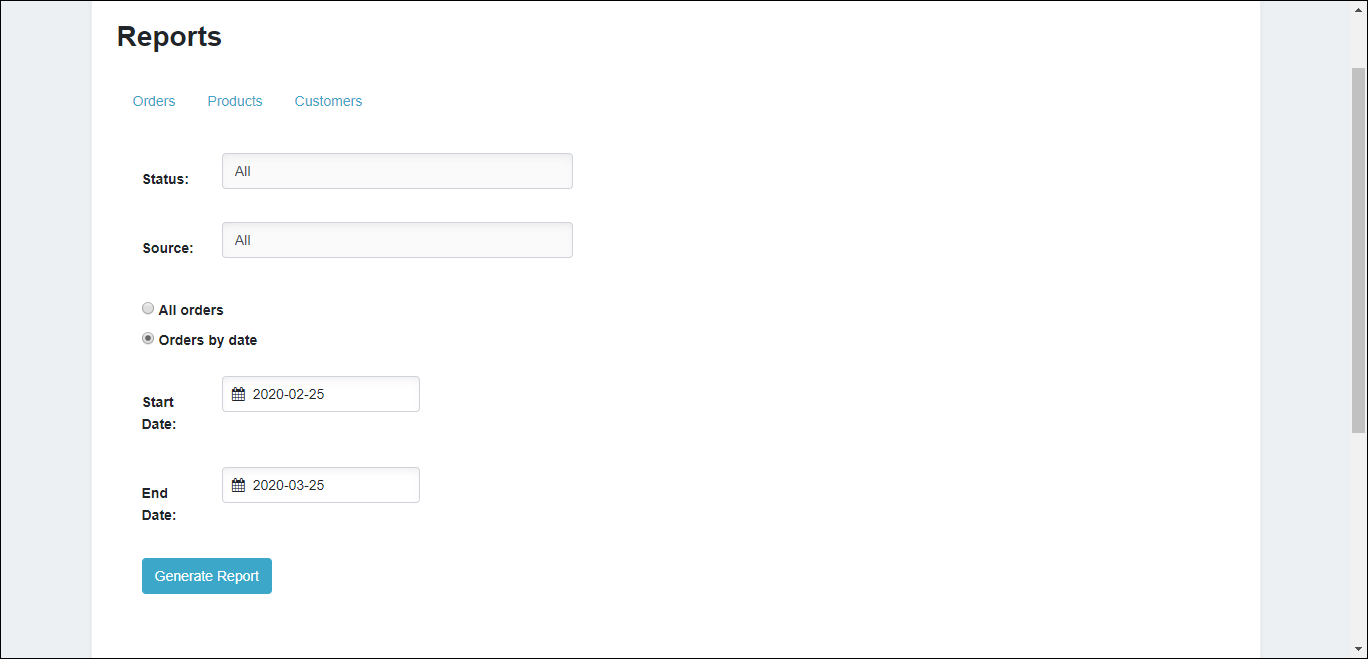
Click Generate Report.
The generated CSV is available in the Order Reports section as follows.
Order export CSV structure
The following table describes the format of the CSV file that will be created when you export orders.
| Field | Description |
| Source Order Number | The order number from the source such as Shopify. |
| Name | The name of the customer. |
| The customer's email address. | |
| Phone | The customer's phone number. |
| Order Date | The date when the order was placed. |
| SKU | The product's stock keeping unit that is unique to the product. |
| UPC | The universal product code. |
| Title | The title of the product. |
| Vendor | The line item product vendor. |
| Warehouse | The physical warehouse where the product is stored. |
| Price | The price of the product. |
| Quantity | The quantity of the product. |
| Reference Number | A number that is generated by a destination channel, such as 3PL partner, where order is sent. |
| Order Source | The source from which the order was made, such as Shopify. |
| Shipping Code | The shipping code, such as UPSGND for the UPS Ground. |
| Source Shipping | The shipping source, such as UPS. |
| Order Status | Current status of the order. |
| Tracking Number | The carrier-specific tracking number that can be used to track the Shipment. |
| Ship Date | The date when the order was shipped. |
| Shipping Cost | The cost of shipping. |
| Error | The errors if any. |
| Error Message | The error message. |
| Archived | Indicates whether the order is archived. |