# How do I hold an order?
Orders that are in Pending status can be put on hold so that they will not be processed for packing and shipment until you unhold them.
This feature is useful when there are issues with the order such as payment declined or incomplete customer information because once a package is shipped, it cannot be recalled or canceled.
It can also be useful if you have a pending support request on an order, and you want to make sure your support request is processed before your order is sent to the warehouse.
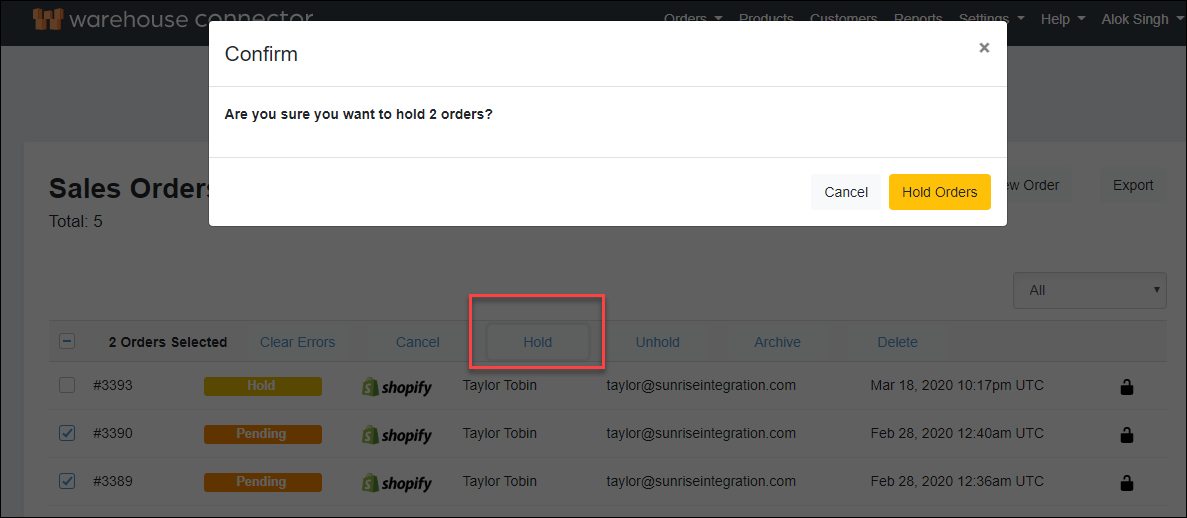
You can put the order on hold from the Sales Orders page or Order Details page. If you want to put multiple orders on hold, then you can perform that action from the Sales Orders page. If you need to put a single order on hold, then you can do that from either the Sales Orders page or Order Details page.
To hold an order:
- Use the search box to find your customer's order. You can search for the order based on the following information:
- order number
- customer name
- customer email address
- Click the order in the search result to view its details.
- On the Order Details page, click Hold Order to hold the order.
- On the Confirm Hold Order dialog box, click the Hold Order button to confirm the hold on order.
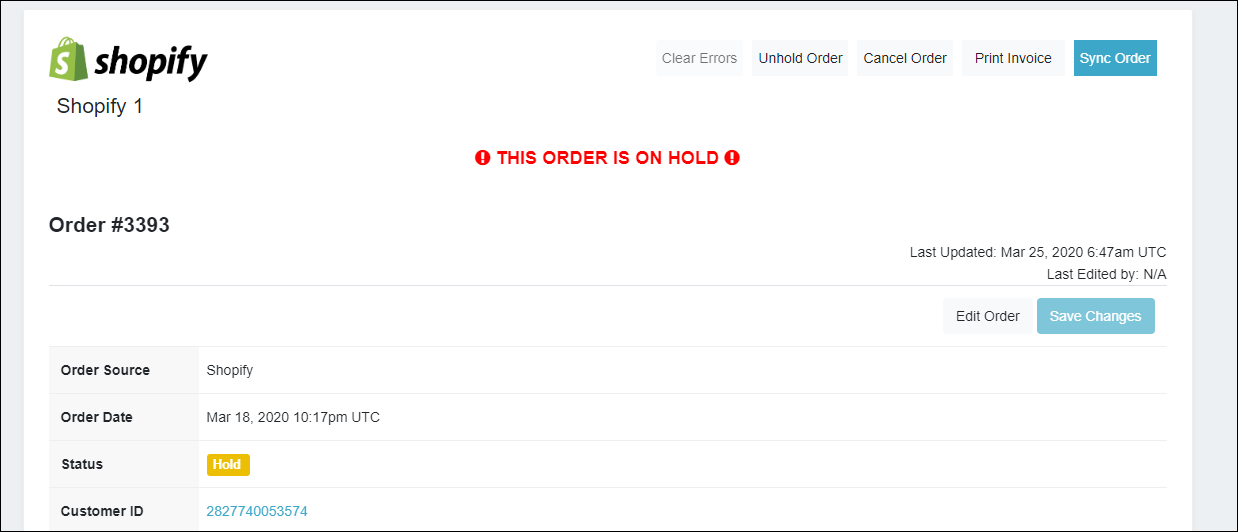
The order is successfully put on hold. Once the order is put on hold, the inventory associated with the particular order is released and is now available to be allotted to some other order. Similarly, you can use the Hold button on the Sales Orders page to hold one or multiple orders.